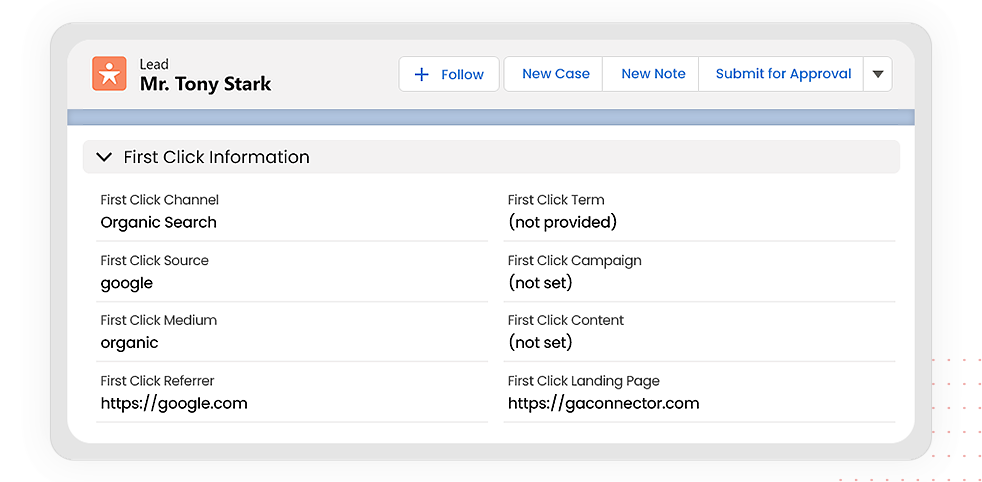
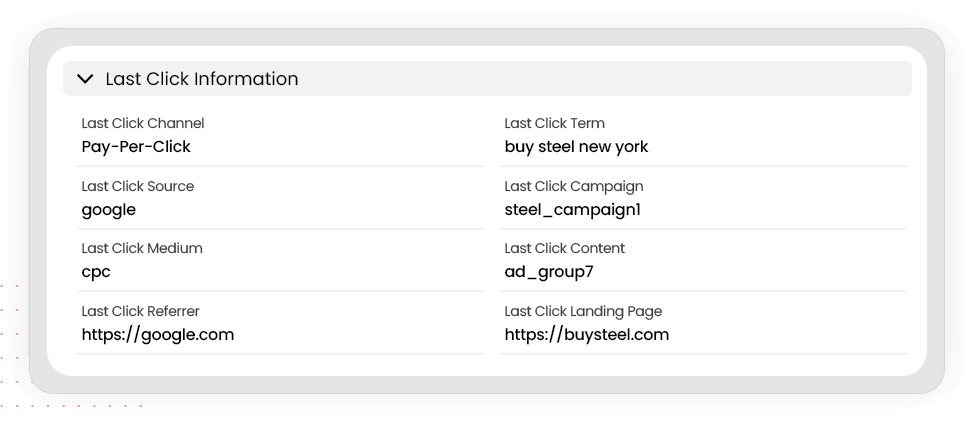
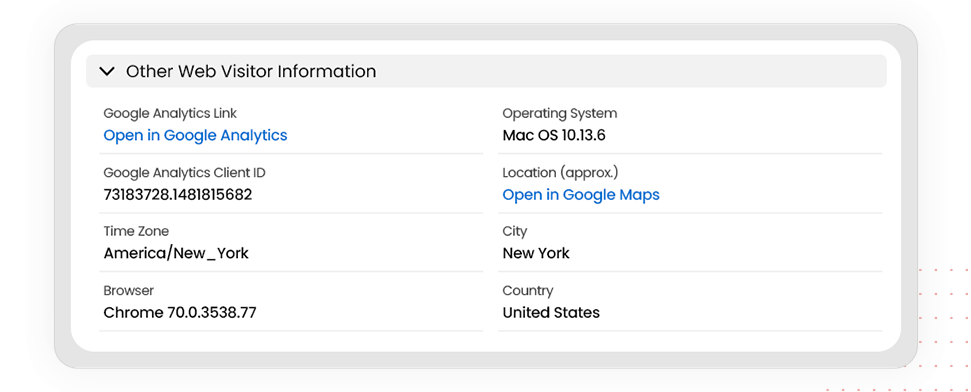
GA Connector integrates Google Analytics data with HubSpot contacts and sends to Google Analytics stats from your HubSpot deals, enabling users to:
- Identify the source, medium and other Google Analytics information of your Contacts, helping you understand where your leads come from.
- Import stats on closed deals and key datapoints to Google Analytics as events allowing you to see deals closed by your sales team and measure marketing performance more effectively (additional add-on).
Install:
1. Login at GA Connector HubSpot Setup Wizard
Requires an active GA Connector account. In case you don’t have one yet, feel free to sign up for a 30-day free trial here.
2. Install GA Connector tracking code on your website
In our setup wizard, a piece of code will be provided to you. You need to add this on the <head> portion of your website and it needs to be placed on every page of your website, even on the pages without lead generation forms.You can also opt to install our GA Connector script via GTM in order to optimize how it loads.
<script data-cfasync="false" type="text/javascript" src="https://tc.gaconnector.com/gaconnector.js"></script>
<script>
function setGaconnectorHiddenFields() {
  var gaFields = gaconnector.getCookieValues();
  for (var fieldName in gaFields) {
    var selectors = 'form input[name="' + fieldName + '"], form input#' + fieldName + ', form input[id^="field_' + fieldName + '"], form input[id^="field_' + fieldName.toLowerCase() + '"], form input[name="' + fieldName.toLowerCase() + '"], form input#' + fieldName.toLowerCase() + ', input[value="gaconnector_' + fieldName + '"], form input[value="' + fieldName + '"]';
    selectors += ', form textarea[name="'+fieldName+'"], form textarea#'+fieldName+', form textarea#field_'+fieldName + ', form textarea[name="'+fieldName.toLowerCase()+'"], form textarea#'+fieldName.toLowerCase()+', form textarea#field_'+fieldName.toLowerCase()+', form textarea.'+fieldName+', form textarea[name="param['+fieldName+']"]'+", form textarea[id^='field_"+fieldName+"']";
    var inputs = document.querySelectorAll(selectors);
    if (inputs === null) {
      continue;
    } else if (typeof inputs.length === 'undefined') {
      inputs.value = gaFields[fieldName];
      jQuery(inputs).trigger('change');
    } else {
      for (var i = 0; i < inputs.length; i++) {
        inputs[i].value = gaFields[fieldName];
        jQuery(inputs).trigger('change');
      }
    }
  }
}

gaconnector.setCallback(setGaconnectorHiddenFields);
setInterval(setGaconnectorHiddenFields, 1000);
</script>
3. Install the GA Connector App for HubSpot
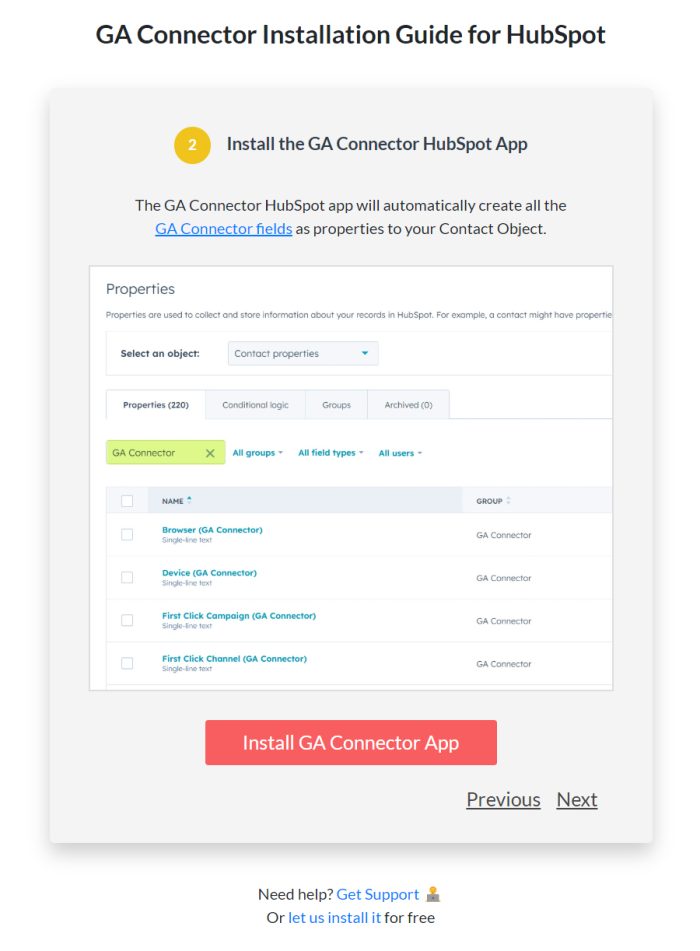
3.1 Click on Install GA Connector App
3.2 Select your HubSpot account (portal)
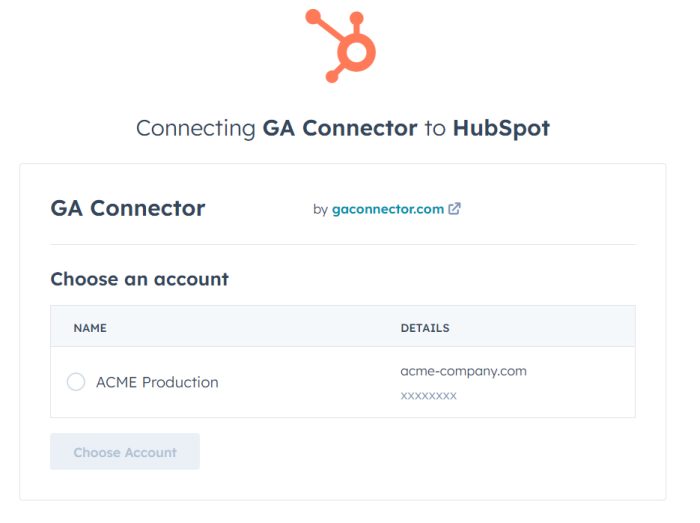
3.3 Click Choose Account
3.4 Review the requested scopes on this screen. GA Connector requests access to read contacts and deals, and read and edit contact properties and forms.
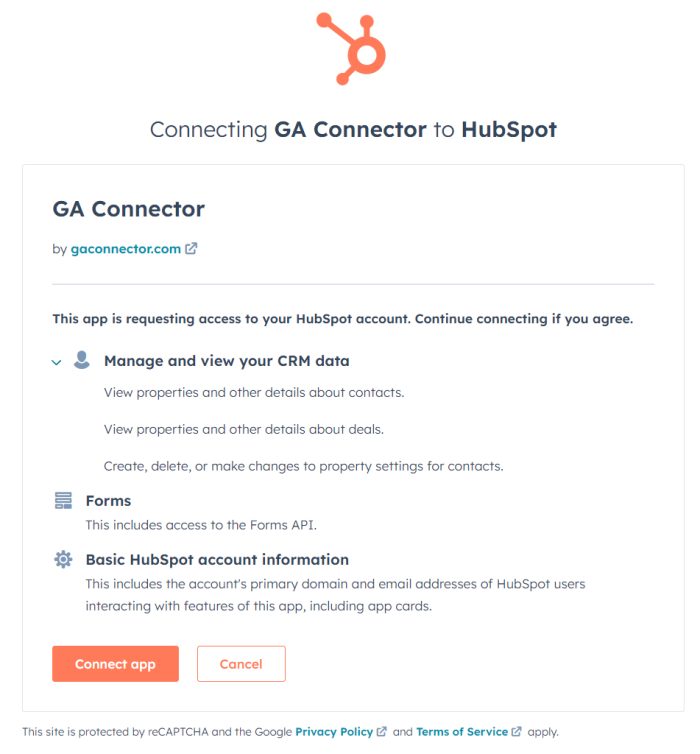
3.5 Click Connect app
3.6 See the next section
Configure:
There are two main features of GA Connector that you can configure :
- GA to HubSpot - Identifies the source, medium and other Google Analytics information of your Contacts.
- HubSpot to GA (optional add-on) - Sends stats on closed deals and key datapoints to Google Analytics as events
1. GA to HubSpot
The script you’ve added to your website from the Install section identifies the tracking information about your web visitors and stores them via cookies in the browser.
In order to send this to HubSpot, you’ll need to create hidden fields to your forms and set the field IDs to the table below. You then need to map them to the corresponding custom fields that were created in HubSpot by the GA Connector App.
| Label | Input ID | Label | Input ID |
|---|---|---|---|
| All Traffic Sources | all_traffic_sources | Last Click Campaign | lc_campaign |
| Browser | browser | Last Click Channel | lc_channel |
| City (from IP address) | city | Last Click Content | lc_content |
| Country (from IP address) | country | Last Click Landing Page | lc_landing |
| First Click Campaign | fc_campaign | Last Click Medium | lc_medium |
| First Click Channel | fc_channel | Last Click Referrer | lc_referrer |
| First Click Content | fc_content | Last Click Source | lc_source |
| First Click Landing Page | fc_landing | Last Click Term | lc_term |
| First Click Medium | fc_medium | Last Click Timestamp | lc_timestamp |
| First Click Referrer | fc_referrer | Longitude | longitude |
| First Click Source | fc_source | Latitude | latitude |
| First Click Term | fc_term | Number of Website Visits | page_visits |
| First Click Timestamp | fc_timestamp | Operating System | OS |
| Google Analytics CID | GA_Client_ID | Device | device |
| Google Analytics Measurement ID | GA_Measurement_ID | Region | region |
| Google Analytics Session ID | GA_Session_ID | Pages Visited | pages_visited_list |
| Google Click Identifier | gclid | Time Spent on Website | time_passed |
| IP Address | ip_address | Time Zone | time_zone |
1.1 Setting up GA to HubSpot with HubSpot Forms
A. For HubSpot forms built using the legacy form editor:
The GA Connector app for HubSpot can automatically add these fields to your form.
A sample form is also created when you install the GA Connector app. You can find this at HubSpot CRM dashboard > Marketing > Forms. You can duplicate and customize this according to your needs.
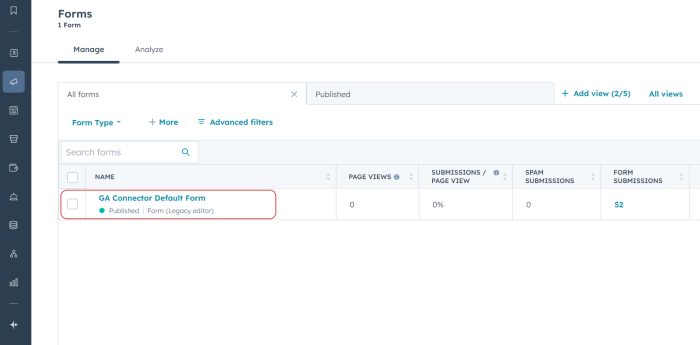
In case you already have a form, you can automatically add hidden fields to this using our HubSpot form setup wizard.
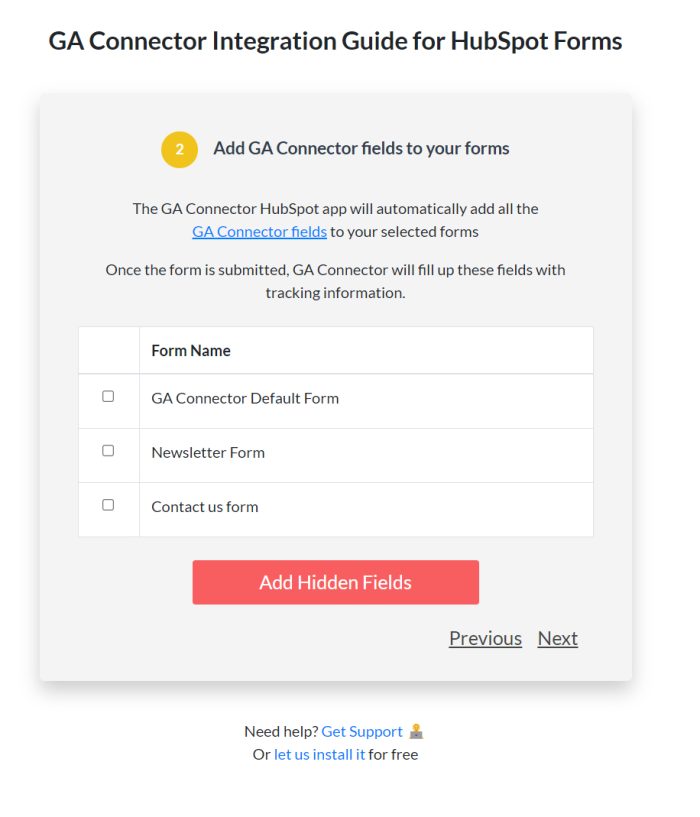
Just select which form you want the hidden fields to be added and use the embed code generated by the setup wizard.
B. For HubSpot forms built using the new visual form editor:
You'll need to manually add the GA Connector fields to your forms.
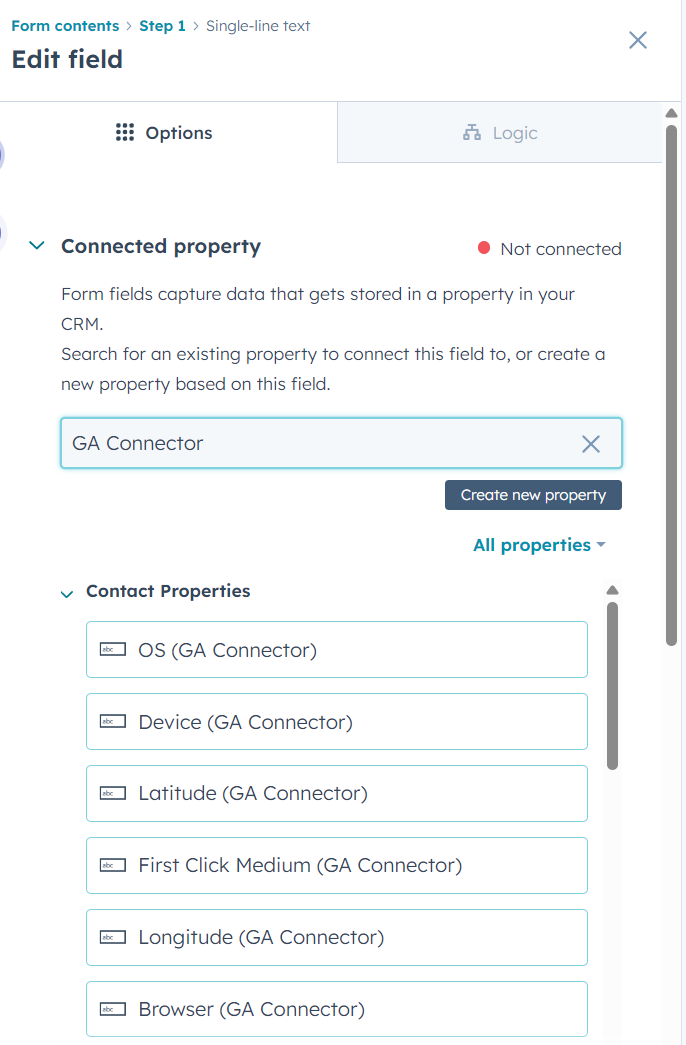
Add the following script to the page where your HubSpot form is embedded.
<script>
    window.addEventListener('hs-form-event:on-ready', function(event) {
        if (typeof HubSpotFormsV4 === "undefined" || typeof gaconnector === "undefined") return;

        var form = HubSpotFormsV4.getFormFromEvent(event);
        if (!form || typeof form.getFormFieldValues !== "function") return;

        form.getFormFieldValues().then(function(formFieldValues) {
            var formIds = [];
            for (var i = 0; i < formFieldValues.length; i++) {
                formIds.push(formFieldValues[i].name);
            }

            var gaFields = gaconnector.getCookieValues();

            for (var fieldName in gaFields) {
                if (!gaFields.hasOwnProperty(fieldName)) continue;

                var matchedFormId = null;
                for (var j = 0; j < formIds.length; j++) {
                    if (formIds[j].indexOf(fieldName) !== -1) {
                        matchedFormId = formIds[j];
                        break;
                    }
                }

                if (matchedFormId) {
                    form.setFieldValue(matchedFormId, gaFields[fieldName]);
                }
            }
        });
    });
</script>
1.2 Integration with Non-HubSpot forms
If you are using other forms, here are the guides for integrating the forms that are the most popular among the clients of GA Connector:
- Salesforce Web-to-Lead forms
- Zoho CRM Webforms
- Zoho SalesIQ
- Contact Form 7 for WordPress
- Gravity forms for WordPress
- Ninja Forms for WordPress
- Unbounce
- Pardot
- LiveChat
- Intercom
- Mailchimp forms
- Calendly
- Freshworks CRM (formerly Freshsales) Smart forms
- Freshworks CRM (formerly Freshsales) Classic forms
- Agile CRM
- FormStack
Not seeing your form? Feel free to send us a message at [email protected] so we could help you check if your form is eligible for integration.
2. HubSpot to GA
- Login at app.gaconnector.com/dashboard/integration/crm-to-ga4
- Under Connection Settings, Enter the Measurement ID and API secret of the GA4 property to which you want the events to be sent.
- To create an API secret, navigate in the Google Analytics UI to:
Admin > Data Streams > choose your stream > Measurement Protocol > Create
Use:
-
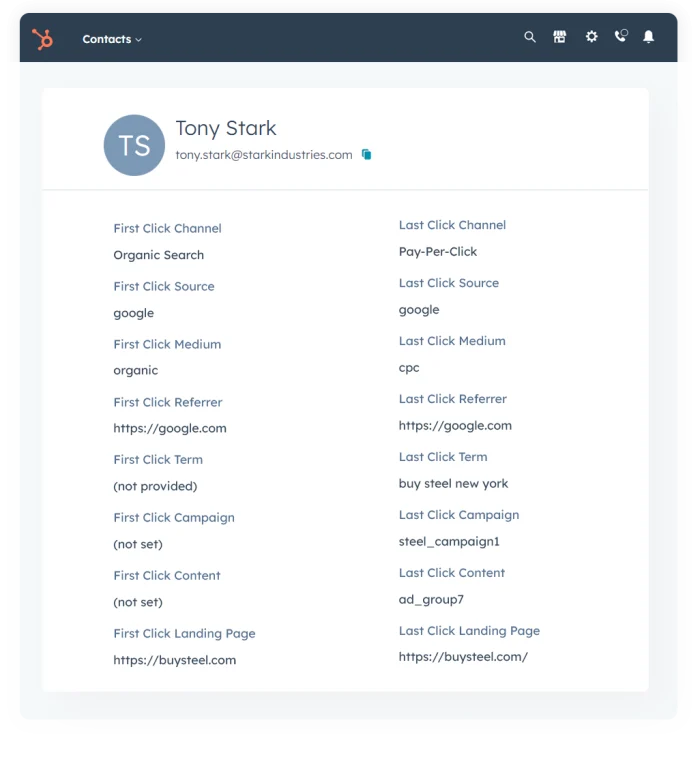
GA to HubSpot - Whenever a contact is created from your configured lead generation forms, it should contain tracking information once it arrives in HubSpot.
-
HubSpot to GA - GA Connector will send an event to your GA property whenever a certain data point triggers on HubSpot. Events are sent to Google Analytics from HubSpot every 5-30 mins.
Data Point Event sent to GA4 Parameter name sent to GA4 When a Contact is created hubspot_contact_created n/a When a Deal is created hubspot_deal_created n/a When a Deal's Amount is updated hubspot_deal_amount_updated
(sends the amount value to GA4)hubspot_deal_amount When a Deal's stage is updated hubspot_deal_stage_updated
(sends the stage value to GA4)hubspot_deal_stage When a Deal is closed won hubspot_deal_closed_won
(sends the amount value to GA4)hubspot_deal_closed_won_amount 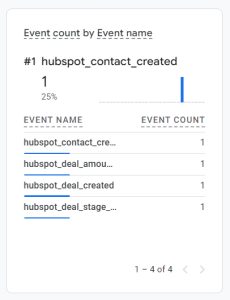
Uninstall / Disconnect:
To uninstall / disconnect GA Connector from your HubSpot account, follow the instructions in this HubSpot Knowledge Base article.
Uninstalling GA Connector will:
- Remove any OAuth tokens stored on GA Connector and prevent any further synchronization between HubSpot and your Google Analytics account.
Note: Uninstalling GA Connector in HubSpot does not remove the GA Connector properties in the Contact object. This is to make sure that the Google Analytics data on your existing Contacts is not lost.
Once you have backed-up the data you want and you no longer need the properties, you can manually delete them by going to Settings > Properties.
Note: If you still have an active GA Connector subscription, uninstalling GA Connector in HubSpot also does not stop Google Analytics information syncing into new Contacts in HubSpot. In order to turn this off, you will need to remove the GA Connector script on your website.