The instructions below apply to Cookie-Based integration.
If you are using API-Based integration, please note that Zoho Booking does not support it. You will need to follow the Cookie-Based integration steps instead.
Not sure which instructions to follow? Start here: How to Check Which GA Connector Integration Type You’re Using.
Add Google Analytics data to Zoho Booking with GA Connector's Zoho Booking integration.
Prerequisites
- Installed either the GA Connector WordPress plugin or GA Connector script on your website.
Setting Up The GA Connector Script
Aside from the main GA Connector script (or plugin), you'll need to add an additional GA Connector script which adds tracking data to your website as cookies.
<script src="https://tracker.gaconnector.com/gaconnector.js"></script>The final code that you would need to add to your website would look like this:
<script src="https://tracker.gaconnector.com/gaconnector.js"></script>
<script src="https://track.gaconnector.com/gaconnector.js" type="text/javascript"></script>
<script type="text/javascript">gaconnector2.track("the-account-ID-assigned-to-you");</script>
Create Hidden Fields on your Zoho Bookings Form
On your Zoho Bookings dashboard, create additional fields on your booking form. Once a customer has submitted your booking form, these fields will be filled up with tracking information.
For a list of all GA Connector fields that you can track, please see this link.
- For each GA Connector field that you want to track, create a field on your form, the form label needs to match the input ID with the underscores replaced with dashes. (E.g. if you want to track Last Click Source, set the label as lc-source). Make sure to make the field not mandatory.
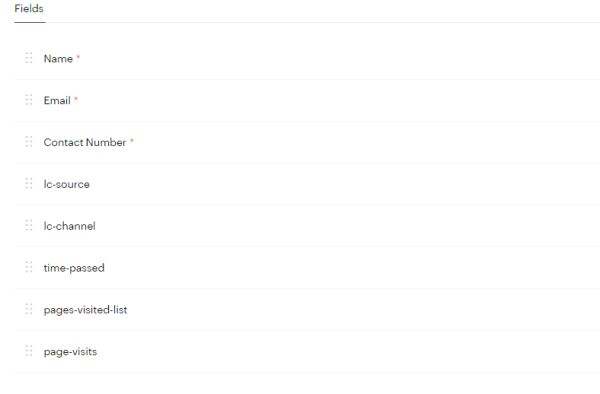
- Hide the fields you have created by clicking on the eye icon when you hover the field.

Embed your Booking page on your website
Your old embed code would look something like this:
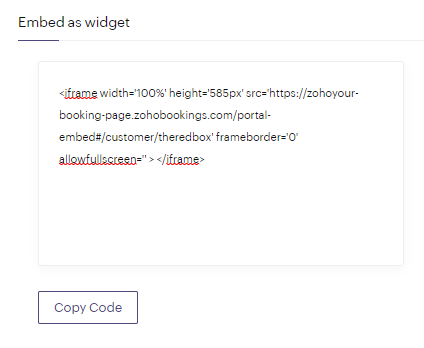
Instead of the one above, use the code below as your new embed code:
<script>
var iframeSource = 'https://lightyear.zohobookings.com/portal-embed#/customer/demo';

window.addEventListener("DOMContentLoaded",(()=>{var gaFields,ctr=0,gaFieldsReplaced={},zohoBookingWidget=document.querySelectorAll("#gaConnectorZohoBookingWidget");function createIframe(){for(var fieldName in gaFields)gaFieldsReplaced[fieldName.replaceAll("_","-")]=gaFields[fieldName];var searchQuery="?"+new URLSearchParams(gaFieldsReplaced).toString();const iframe=document.createElement("iframe");for(iframe.src=iframeSource+searchQuery,iframe.width="undefined"!=typeof iframeWidth?iframeWidth:"100%",iframe.height="undefined"!=typeof iframeHeight?iframeWidth:"750px",iframe.setAttribute("allowfullscreen",""),iframe.frameBorder="0",i=0;i<zohoBookingWidget.length;++i)zohoBookingWidget[i].appendChild(iframe)}var interval=setInterval((function(){!function(){try{return!!(gaFields=gaconnector.getCookieValues()).lc_source}catch(err){console.log("GA Connector script not found")}}()?ctr>5&&(createIframe(),clearInterval(interval)):(createIframe(),clearInterval(interval)),ctr++}),100)}));</script><div id="gaConnectorZohoBookingWidget"></div>
Change the value of the iframeSource variable on line 2 to the value of your src in the original embed code.
Once a customer submits your booking form, the tracking information will appear on the Additional Info tab inside the appointment summary.
That's it!
More than just UTM parameters
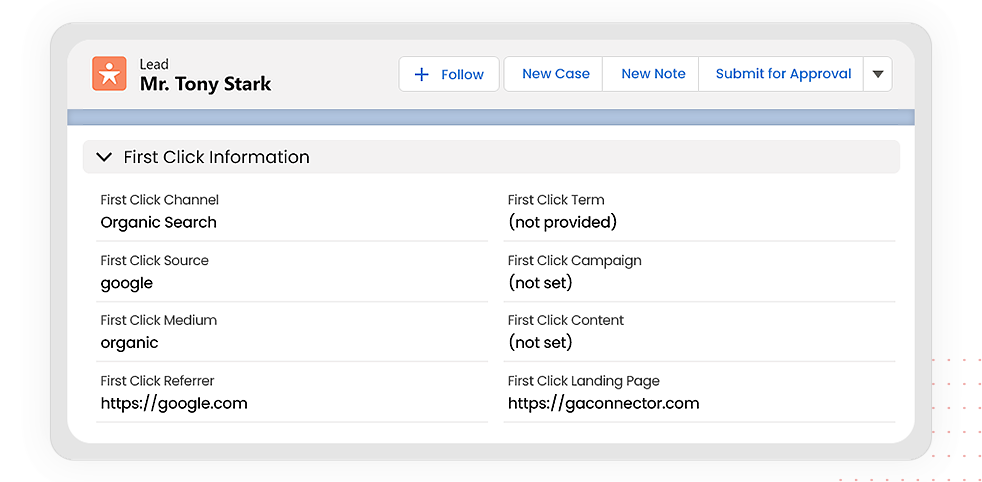
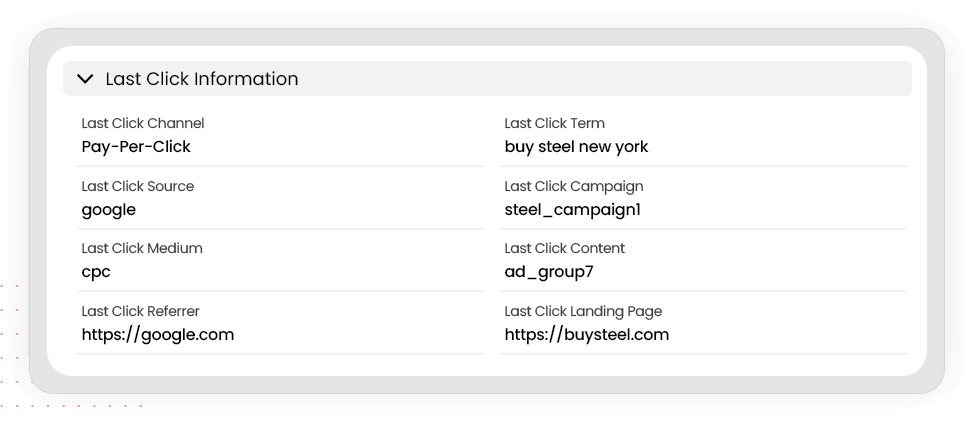
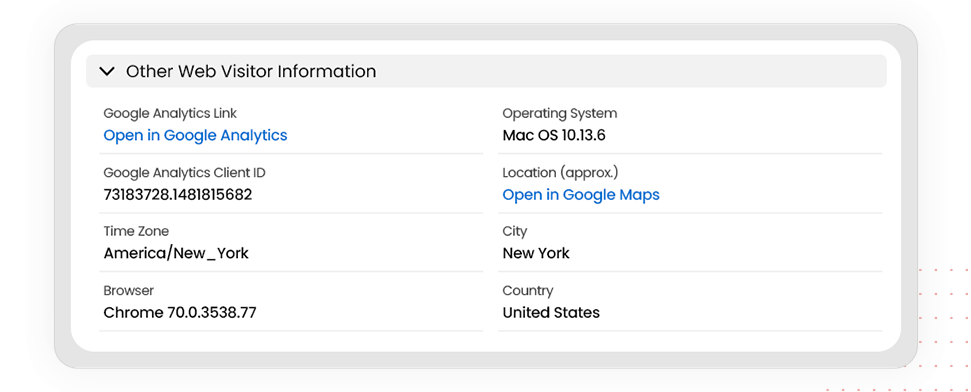
GA Connector adds UTM information, geolocation, referral information to your Zoho Bookings leads.
See below for all the information that you can add to your leads to help you find out which of your marketing activities drive sales.
| Label | Input ID | Label | Input ID |
|---|---|---|---|
| All Traffic Sources | all_traffic_sources | Last Click Campaign | lc_campaign |
| Browser | browser | Last Click Channel | lc_channel |
| City (from IP address) | city | Last Click Content | lc_content |
| Country (from IP address) | country | Last Click Landing Page | lc_landing |
| First Click Campaign | fc_campaign | Last Click Medium | lc_medium |
| First Click Channel | fc_channel | Last Click Referrer | lc_referrer |
| First Click Content | fc_content | Last Click Source | lc_source |
| First Click Landing Page | fc_landing | Last Click Term | lc_term |
| First Click Medium | fc_medium | Last Click Timestamp | lc_timestamp |
| First Click Referrer | fc_referrer | Longitude | longitude |
| First Click Source | fc_source | Latitude | latitude |
| First Click Term | fc_term | Number of Website Visits | page_visits |
| First Click Timestamp | fc_timestamp | Operating System | OS |
| Google Analytics CID | GA_Client_ID | Device | device |
| Google Analytics Measurement ID | GA_Measurement_ID | Region | region |
| Google Analytics Session ID | GA_Session_ID | Pages Visited | pages_visited_list |
| Google Click Identifier | gclid | Time Spent on Website | time_passed |
| IP Address | ip_address | Time Zone | time_zone |