Your Google Ads dashboard shows 500 conversions this month. Your CRM shows 87 closed deals worth $340k. Nothing in either tool connects those two numbers.
That’s the CRM integration problem. GA4 knows which ad someone clicked. Your customer relationship management platform knows which deal they signed. Neither system joins those facts automatically, and it takes hours to manually reconcile them across multiple systems.
This guide covers the full CRM software integration with GA4, the data you gain on both sides, the five integration methods (native, no-code, Data Import, Measurement Protocol, BigQuery), how to choose between them, and the privacy rules you can’t skip. Whether you’re on Salesforce, HubSpot, Pipedrive, or Zoho – or connecting marketing automation tools to your stack for the first time – you’ll finish with a clear path forward.
Let’s start with what a CRM ↔ GA4 integration is actually doing – then we’ll get to the five ways to do it.
What CRM software integration with Google Analytics actually means
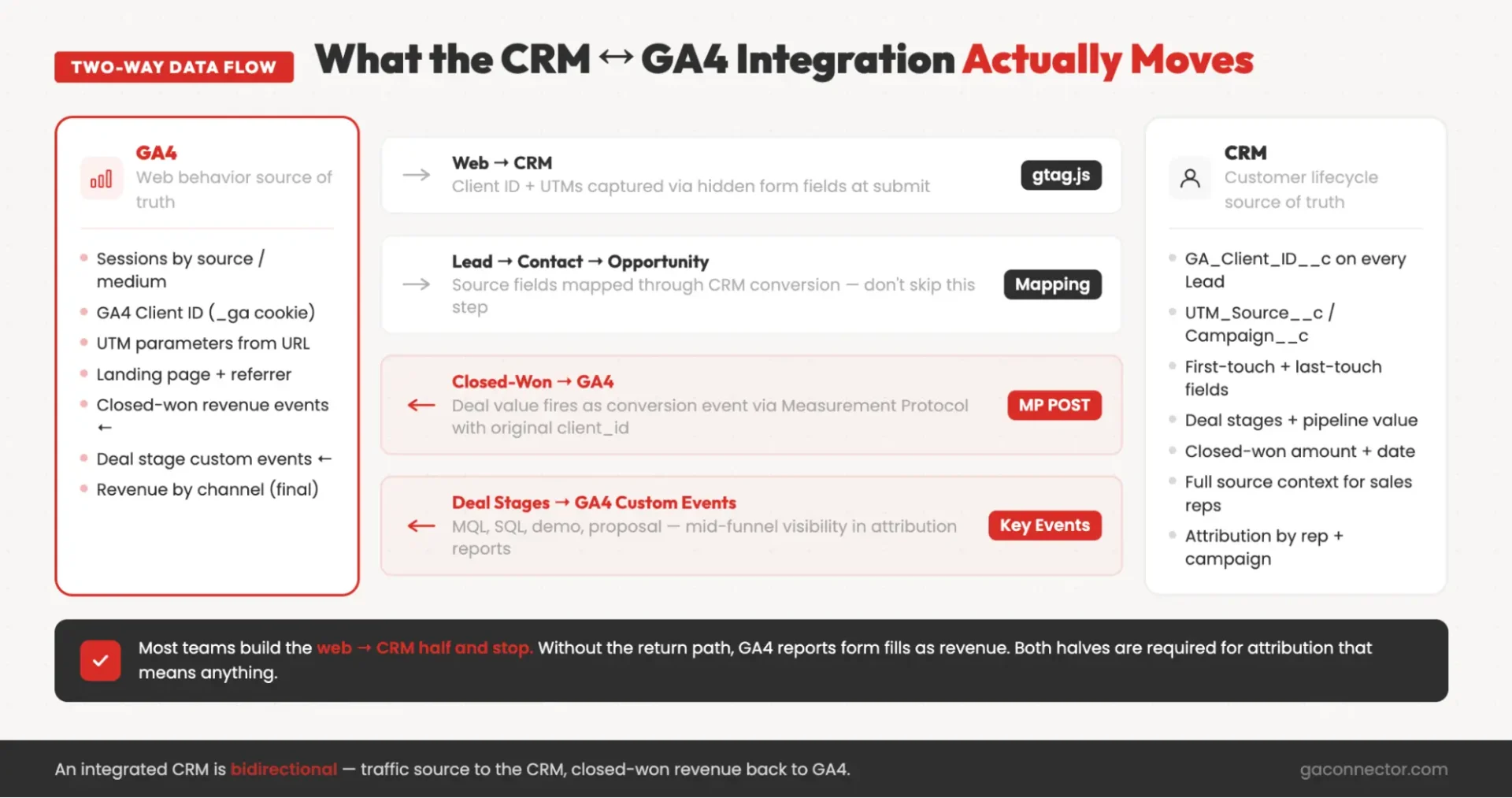
CRM integration with GA4 is not a single feature. It’s a two-way data flow between systems built independently and never designed to share customer data automatically.
Web → CRM. Every visitor who hits your site has a traffic source: a UTM-tagged Google Ad, an organic search result, a social media post. Without integration, that source data lives in GA4 and dies there. With CRM system integration in place, the source – medium, campaign, keyword, landing page, full touchpoint history – lands on the matching lead record the moment the form submits. It allows your sales teams to see context and your attribution report to see the origin of every deal.
CRM → GA4. Your CRM shows you the closed deals. Without a return path, GA4 knows nothing about deal stages, contract values or customer lifetime events. With the loop closed, closed-won events – with deal values – fire back into GA4 as conversions, so attribution reports reflect money instead of form fills.
Most teams set up one half and call it done. The result is half-attribution – either the CRM has source data but GA4 reports on form fills, or GA4 sees the revenue but it’s disconnected from individual leads. An integrated CRM setup is bidirectional.
A few clarifications on what it isn’t:
- Not a one-time data export. The integration runs continuously, enriching every new lead and syncing every new closed deal.
- Not a replacement for either tool. GA4 stays the source of truth for web behavior. Your CRM stays the source of truth for customer relationships, pipeline, and revenue.
- Not a way to send PII to GA4. Identifiers used in the integration are non-PII by Google’s Terms of Service – more on this in the compliance section.
What data you gain on both sides
Is this worth the integration process? Let’s review what changes once the CRM is connected with GA4.
In your CRM, every lead record includes the missing context: source, campaign, keyword, landing page, referrer, and the GA4 Client ID that links CRM activity to GA4 sessions. Each lead contains both first-touch and last-touch attribution, plus a timeline of all interactions throughout the customer journey.
In GA4, attribution becomes tied to real business outcomes. Closed deals are sent back as conversion events linked to their original source. Lead status updates appear as events, and offline actions like calls, demos, and signed contracts are connected to website sessions. The result is a single view of marketing performance from first visit to revenue.
Done right, GA4 stops measuring clicks and starts measuring business results. Revenue, pipeline stages, and deal sources become visible across the entire customer journey. The result is reporting that shows exactly which marketing efforts generate revenue.
Why CRM integration matters for SMBs
There are three main reasons to connect your CRM and GA4.
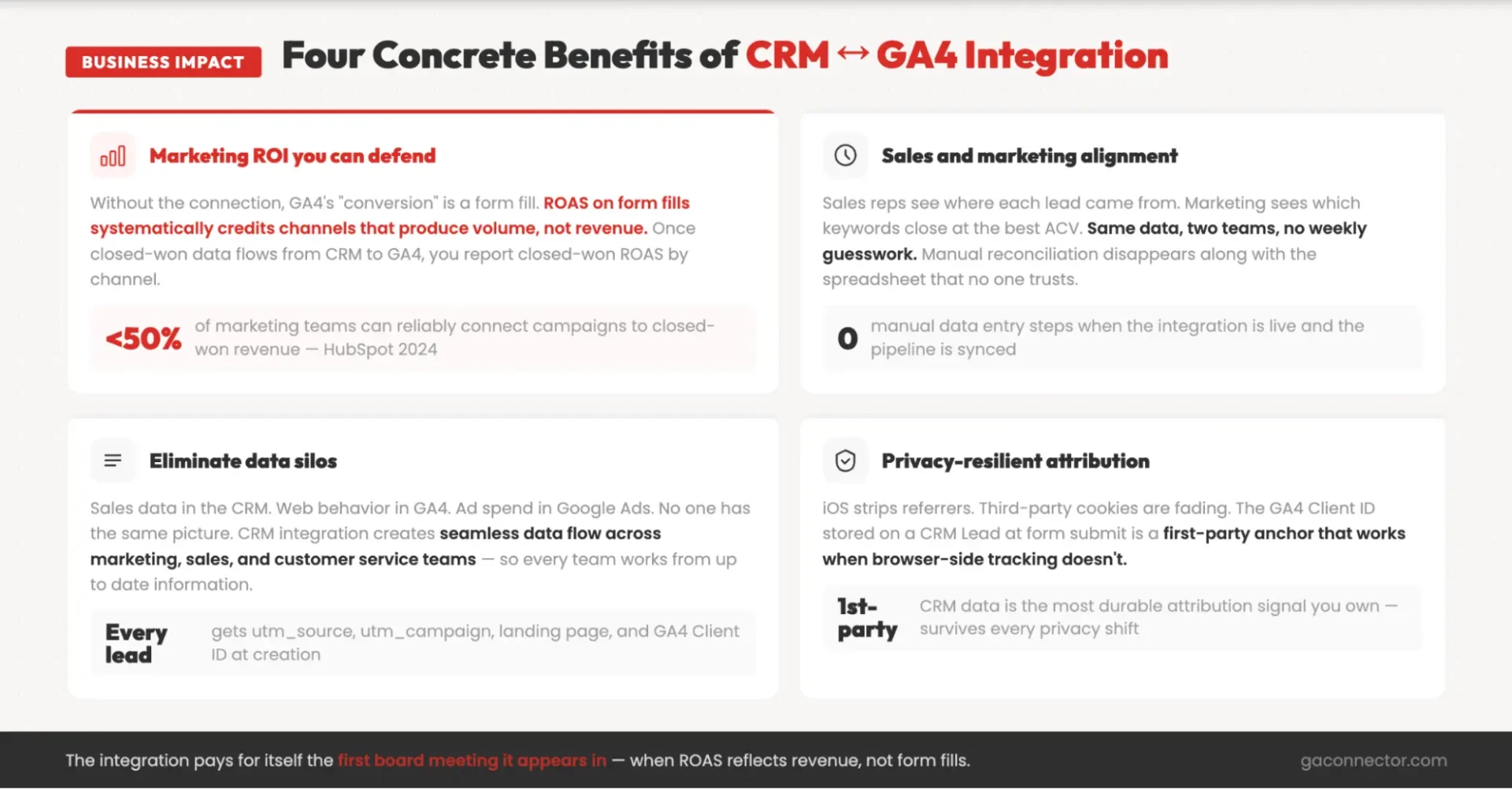
- Accurate marketing ROI. Without the integration, GA4 only sees form submissions, not revenue. A channel may generate many leads but few customers. Connecting CRM data lets you measure campaigns based on closed deals, not just lead volume.
- Better sales and marketing alignment. Sales teams gain visibility into where leads came from, while marketing teams see which channels, campaigns, and keywords generate revenue. Both teams work from the same data instead of separate reports.
- More reliable attribution. Privacy changes continue to reduce tracking accuracy across ad platforms and browsers. CRM data is first-party data that you own. Connecting it to GA4 creates a more stable marketing attribution model and reduces dependence on third-party signals.
The benefits of CRM integration: what changes in practice
Before choosing a method, it helps to understand how an integrated CRM transforms day-to-day business processes.
Eliminate data silos. Without integration, sales data sits in the CRM, website behavior sits in GA4, ad spend sits in Google Ads, and each team sees only part of the picture. A CRM integration brings customer data together, giving everyone access to the same information instead of relying on separate tools and reports.
Reduce manual work. Entering data across multiple platforms often leads to mistakes and inconsistencies. An integrated CRM removes the need to export spreadsheets, copy data between systems, or manually match records. Less manual work means cleaner data and more reliable reporting.
Improve customer experience. When sales teams can see where a lead came from, which campaigns they interacted with, and their previous conversations, they can tailor outreach to the individual. Better context leads to more relevant communication, stronger relationships, and a higher chance of conversion.
Connect teams and processes. Integrated systems allow marketing, sales, and customer service teams to share information automatically. Marketing automation becomes more effective when it uses current CRM data, and every team can make decisions based on the same customer information rather than working in isolation.
The 5 ways to connect your CRM to GA4
There is no perfect integration method. Each approach comes with its own strengths and limitations.
Here are the five main options and the trade-offs you should consider before choosing one.
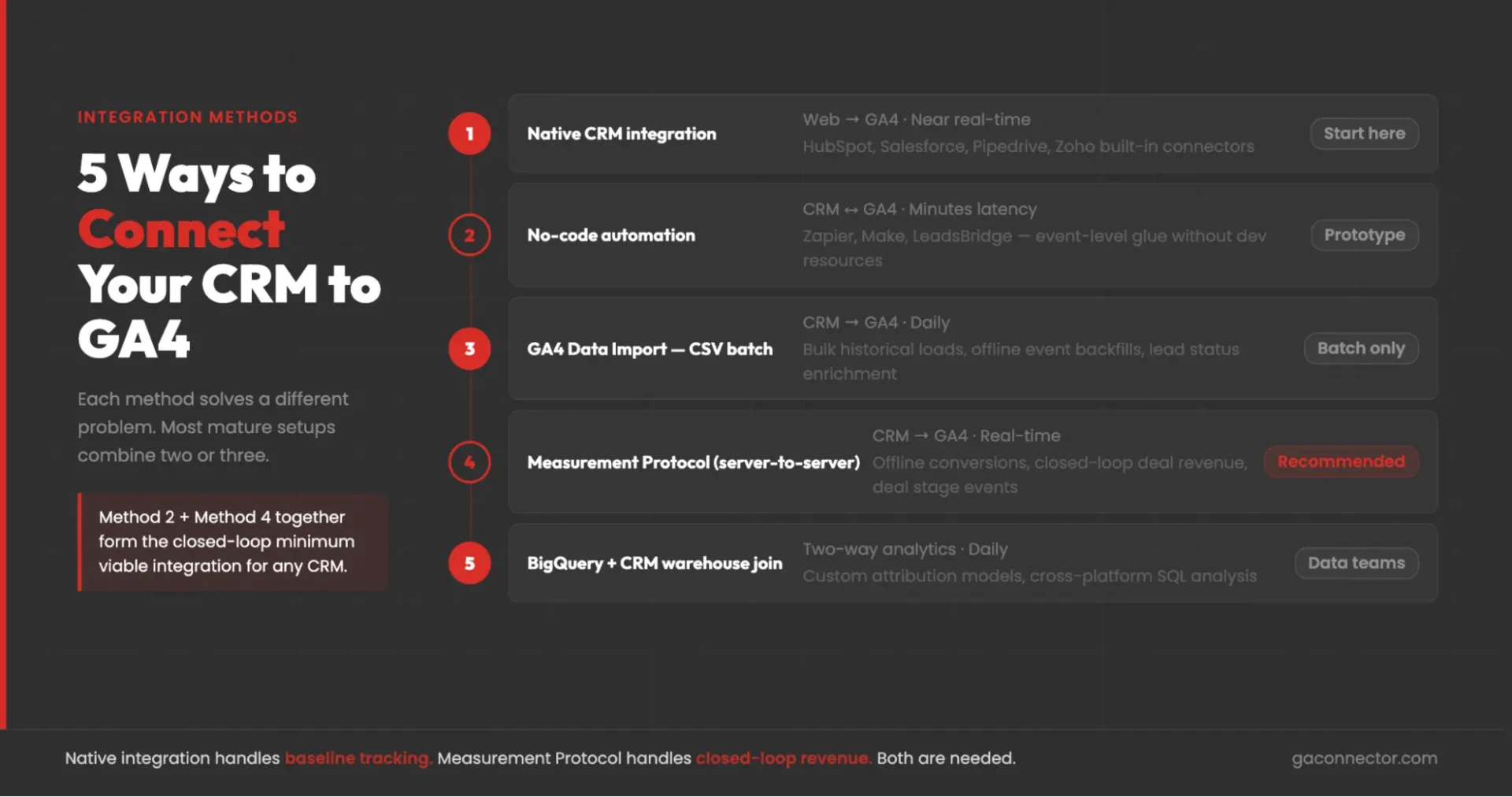
| Method | Setup complexity | Data latency | Best for | Watch out for |
|---|---|---|---|---|
| Native CRM integration | Low | Near real-time | Teams on a major CRM with a built-in GA4 connector | Limited to what the native connector exposes |
| No-code automation (Zapier, Make) | Low–Medium | Minutes | Mixed-stack teams without dev resources | Per-task pricing scales fast; breaks silently |
| GA4 Data Import (CSV) | Medium | Daily / manual | Bulk historical loads and offline event backfills | Matching identifier must already exist in GA4 |
| Measurement Protocol (server-to-server) | High | Real-time | Offline conversions, deal-stage tracking, closed-loop revenue | Requires dev work; easy to miss client_id stitching |
| BigQuery + CRM warehouse join | High | Daily | Mature data teams running custom attribution | SQL skills required; BigQuery cost management |
1. Native CRM integrations
Most major CRMs, including HubSpot, Salesforce, Pipedrive, and Zoho, offer built-in GA4 integrations. Setup is usually simple: connect your accounts, add your GA4 Measurement ID, and start sending data between platforms.
Good for: Teams that want a quick and easy setup with minimal technical work. You can have basic tracking running within minutes.
Limitations: Native integrations usually cover only the basics. They often don’t store the GA4 Client ID in the CRM, preserve full UTM history, or send revenue and deal data back to GA4. They help connect the systems, but they rarely provide the level of attribution needed for full-funnel reporting.
2. No-code automation (Zapier, Make, LeadsBridge)
No-code automation tools connect your CRM and GA4 by moving data between the two systems automatically. A common example is sending a GA4 event whenever a deal is marked as Closed-Won in the CRM, including the deal value.
Good for: Teams without developer resources, businesses whose CRM lacks a native GA4 integration, and companies that need a quick way to automate specific workflows.
Limitations: Costs can increase quickly as data volume grows. Integrations may stop working after API or field changes, often without obvious warnings. These tools also struggle with GA4 Client ID tracking, which can make it difficult to connect CRM actions back to the original user journey in GA4.
3. GA4 Data Import (CSV uploads)
GA4 Data Import lets you upload CRM data such as lead status, deal stages, offline conversions, and revenue using CSV files. GA4 then matches that data to existing users and events using an identifier such as User ID or Client ID.
Good for: Historical data imports, daily exports from legacy systems, and connecting closed-won revenue to calculate true ads ROI without building a real-time integration.
Limitations: The matching identifier must already exist in GA4. If the CRM doesn’t store the GA4 Client ID or User ID, the data cannot be matched correctly. Data Import also works on a batch basis, making it unsuitable for real-time reporting, optimization, or bidding use cases.
4. Measurement Protocol (server-to-server)
Measurement Protocol allows your server to send events directly to GA4 and set up a closed-loop reporting. This makes it possible to track offline actions such as qualified leads, deal stage changes, and closed-won revenue, and connect them to the original website session.
Good for: Offline conversion tracking, sending revenue data to GA4 in real time, and building full-funnel attribution that connects marketing activity to actual business outcomes.
Limitations: This approach depends on capturing the GA4 Client ID when a lead submits a form. Without it, GA4 cannot connect offline events to the original user journey, making attribution unreliable. It also requires developer resources to build, maintain, and monitor the integration over time.
5. BigQuery export + CRM warehouse join
GA4 can export raw event data to BigQuery, where it can be combined with CRM data imported through tools like Fivetran, Airbyte, or custom ETL pipelines. Once the data is in one place, SQL can be used to join datasets, build attribution models, and create reporting dashboards in tools like Looker Studio.
Good for: Companies with dedicated data resources, custom attribution requirements, and the need to analyze data from multiple systems such as GA4, Google Ads, CRM platforms, and finance tools in one place.
Limitations: This approach requires SQL knowledge, data pipelines, and ongoing management of infrastructure and costs. It also does not provide real-time reporting without additional engineering work.
Key takeaway: Most growing businesses use a combination of methods rather than relying on just one. Native integrations provide basic tracking, Measurement Protocol handles revenue and offline conversions, and Data Import or BigQuery support more advanced reporting and analysis. These approaches work together rather than competing with one another.
How to choose the right CRM integration method
Your decision comes down to three factors.
- Which CRM you use. Major platforms such as HubSpot, Salesforce, Pipedrive, and Zoho offer built-in GA4 integrations, though their capabilities vary. Less common or older CRM systems often require custom integrations or third-party tools. Start by understanding what your CRM already supports.
- Available technical resources. Some methods require ongoing developer involvement, while others can be managed by marketing or operations teams. Measurement Protocol and BigQuery typically need engineering support. No-code automation tools and Data Import require less technical effort. Native integrations are usually the easiest to set up.
- How quickly you need the data. If you need revenue and conversion data to appear in GA4 almost immediately, Measurement Protocol is usually the best option. If daily updates are enough for reporting and analysis, Data Import or BigQuery may be a simpler and more cost-effective choice.
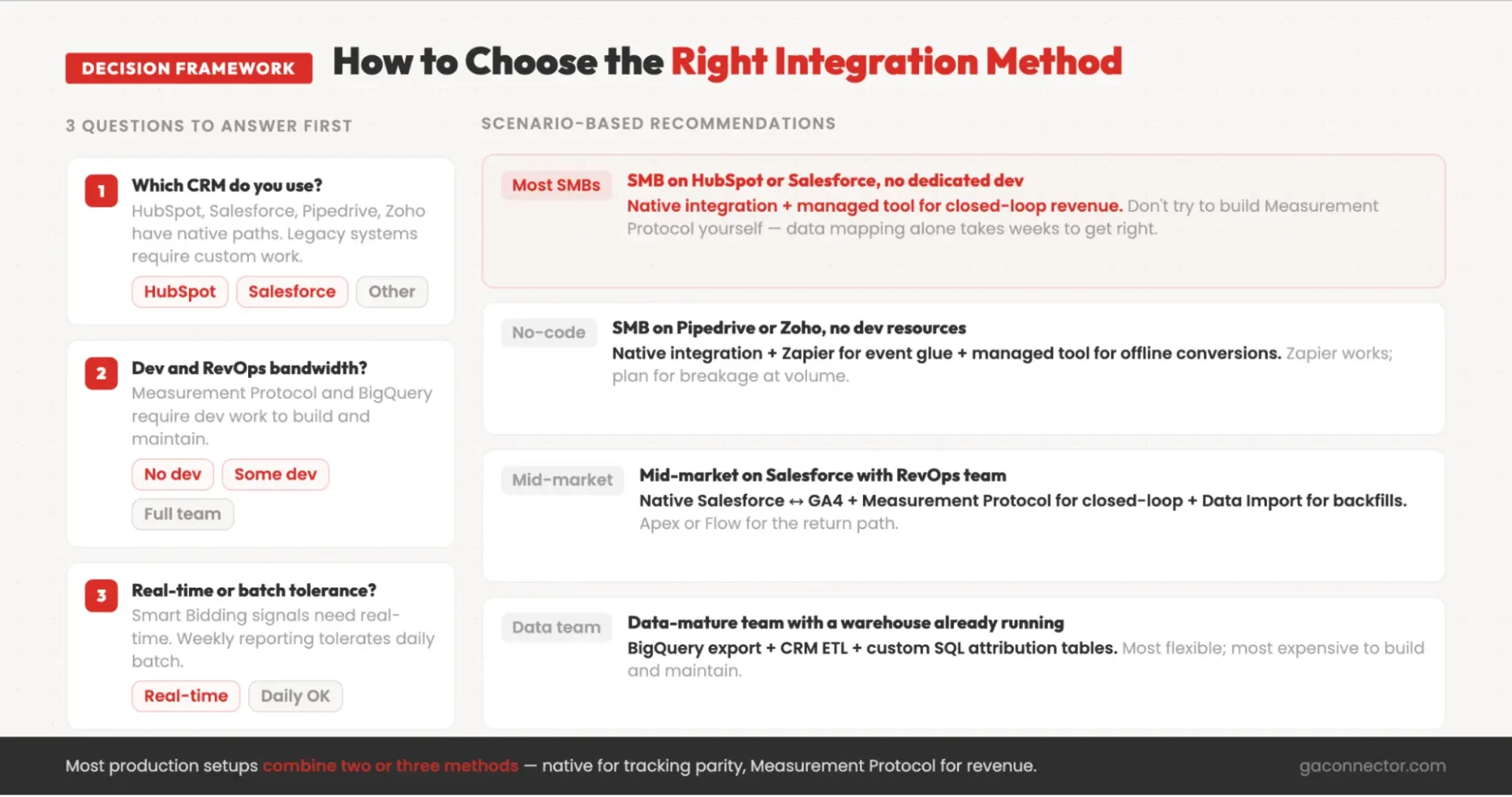
Scenario-based recommendations:
- SMB on HubSpot, one marketing manager, no dev bandwidth: Native HubSpot ↔ GA4 connector plus a managed tool for closed-loop revenue. Don’t try to build Measurement Protocol yourself – the data mapping alone takes weeks to get right.
- SMB on Pipedrive or Zoho, no dev resources: Native integration plus Zapier for event-level glue plus a managed tool for offline conversions.
- Mid-market on Salesforce, RevOps team, no dedicated data engineer: Native Salesforce ↔ GA4 plus Measurement Protocol for closed-loop revenue plus Data Import for historical backfills.
- Data-mature team with a warehouse already running: BigQuery export plus CRM ETL plus custom SQL. Build it in-house.
Most businesses use a combination of integration methods rather than relying on just one. Native integrations handle basic tracking, Measurement Protocol or a similar solution sends revenue and offline conversions back to GA4, and BigQuery supports more advanced analysis and reporting.
For the full setup in your CRM, see the Salesforce marketing attribution guide and Salesforce → GA4 integration overview.
Types of CRM and how integration complexity varies
CRM types and how integration complexity varies
Not all CRM systems are built the same, which means their integration options with GA4 can differ significantly.
Operational CRMs such as HubSpot, Salesforce, Pipedrive, and Zoho are designed for lead management, sales pipelines, and deal tracking. They typically offer the easiest integration experience, with native connectors, APIs, webhooks, and a wide range of third-party tools.
Analytical CRMs focus on customer insights, segmentation, and reporting. These systems often work best with BigQuery-based integrations, where CRM and GA4 data can be combined for deeper analysis across multiple datasets.
Collaborative CRMs are built around customer support and service management. Examples include Salesforce Service Cloud and Oracle Service Cloud. Integrations often focus on sending support-related milestones to GA4, such as resolved tickets, renewals, or upsells.
ERP systems add another layer of complexity. They typically manage inventory, finance, operations, and accounting data alongside customer information. While ERP data can be useful for reporting, CRM systems are usually the better source for GA4 integrations because they track the customer journey, while ERP systems focus on business operations.
Identifiers, PII, and what you can’t send to GA4
Client ID is GA4’s default user identifier. It is generated automatically, stored in the browser, and is not considered personally identifiable information (PII). In most CRM integrations, it serves as the key that links CRM records to GA4 sessions. The best practice is to capture and store the Client ID on the lead record when a form is submitted. Avoid sending it back to GA4 as a custom dimension, as Google does not recommend this approach.
User-ID is an identifier you provide yourself, usually after a user signs in or submits a form. This can be a CRM contact ID or another internal identifier. It helps GA4 recognize the same user across devices and sessions. Never use a raw email address as a User-ID.
Privacy rules are strict. Do not send email addresses, phone numbers, names, or any other personally identifiable information to GA4 through User-ID fields, event parameters, URLs, or custom dimensions.
For websites serving EU users, Consent Mode should be configured correctly. Users who do not provide consent may be tracked using modeled data rather than persistent identifiers. Data retention settings also matter: GA4 stores user-level data for a limited period, with a maximum retention window of 14 months.
Best practice: Store the GA4 Client ID on the CRM record, use an internal identifier for User-ID, and document the setup clearly so future changes do not introduce privacy or compliance issues.
Setup by CRM – the short version
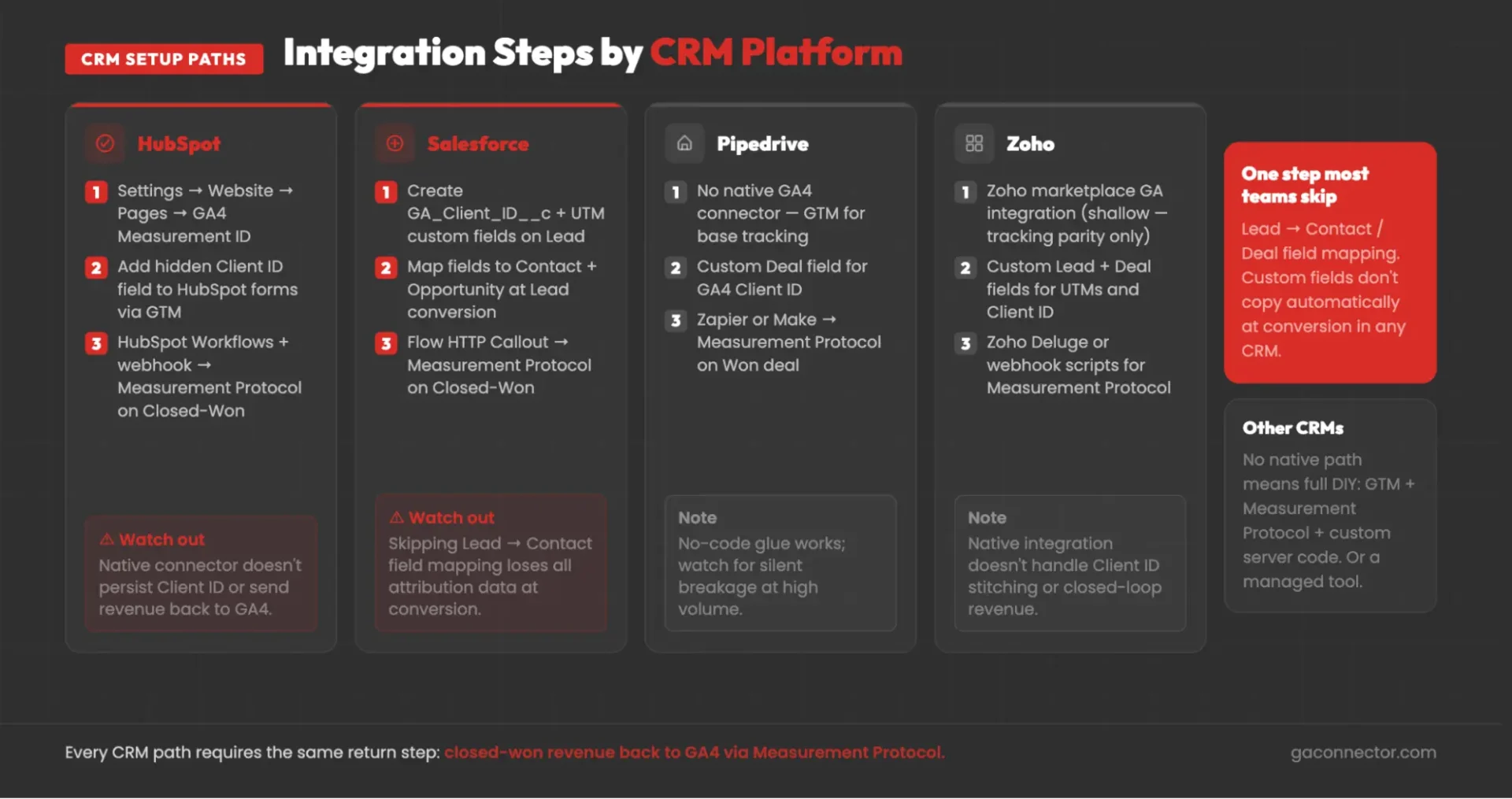
HubSpot ↔ GA4
Enable via Settings → Website → Pages → Integrations → “Integrate with Google Analytics 4.” Add a hidden field to HubSpot forms that captures the GA4 Client ID at submission via GTM. For closed-loop revenue and eliminating duplicate data entry across platforms, use HubSpot Workflows plus a webhook to fire Measurement Protocol purchase events when deals reach Closed-Won.
Pipedrive ↔ GA4
No native GA4 connector. Standard path: GTM plus Zapier or Make for event-level glue plus Measurement Protocol for closed-won revenue. Add a custom field on the Deal or Lead object for the GA4 Client ID. This lets you integrate CRM platforms like Pipedrive without a full custom build.
Salesforce ↔ GA4
Create custom Lead fields for each UTM parameter and Client ID. Map them to Contact and Opportunity on Lead conversion (Setup → Object Manager → Lead → Map Lead Fields) – skipping this is why most Salesforce attribution data disappears after conversion. For revenue back to GA4, fire Measurement Protocol events via Apex trigger or Flow at Closed-Won. See the GA Connector Salesforce dashboards documentation and the full Salesforce attribution guide for the complete setup.
Zoho CRM ↔ GA4
Native Zoho Google Analytics integration exists in the marketplace but doesn’t handle Client ID stitching or closed-loop revenue. Standard pattern: native integration plus custom Zoho fields for UTMs and Client ID plus Zoho Deluge or webhook scripts for Measurement Protocol events on deal close.
Other CRMs and legacy systems
No native integration means the full DIY path: GTM for client-side capture, Measurement Protocol for offline events, custom server code for field mapping across multiple software applications. Or use a managed CRM integration platform – next section.
Skip the custom build. GA Connector provides a ready-made integration between GA4 and major CRMs, including Salesforce, HubSpot, Pipedrive, and Zoho. It handles key attribution requirements such as Client ID capture, UTM tracking across the customer lifecycle, and sending revenue data back to GA4 for full-funnel reporting.
Common CRM integration mistakes
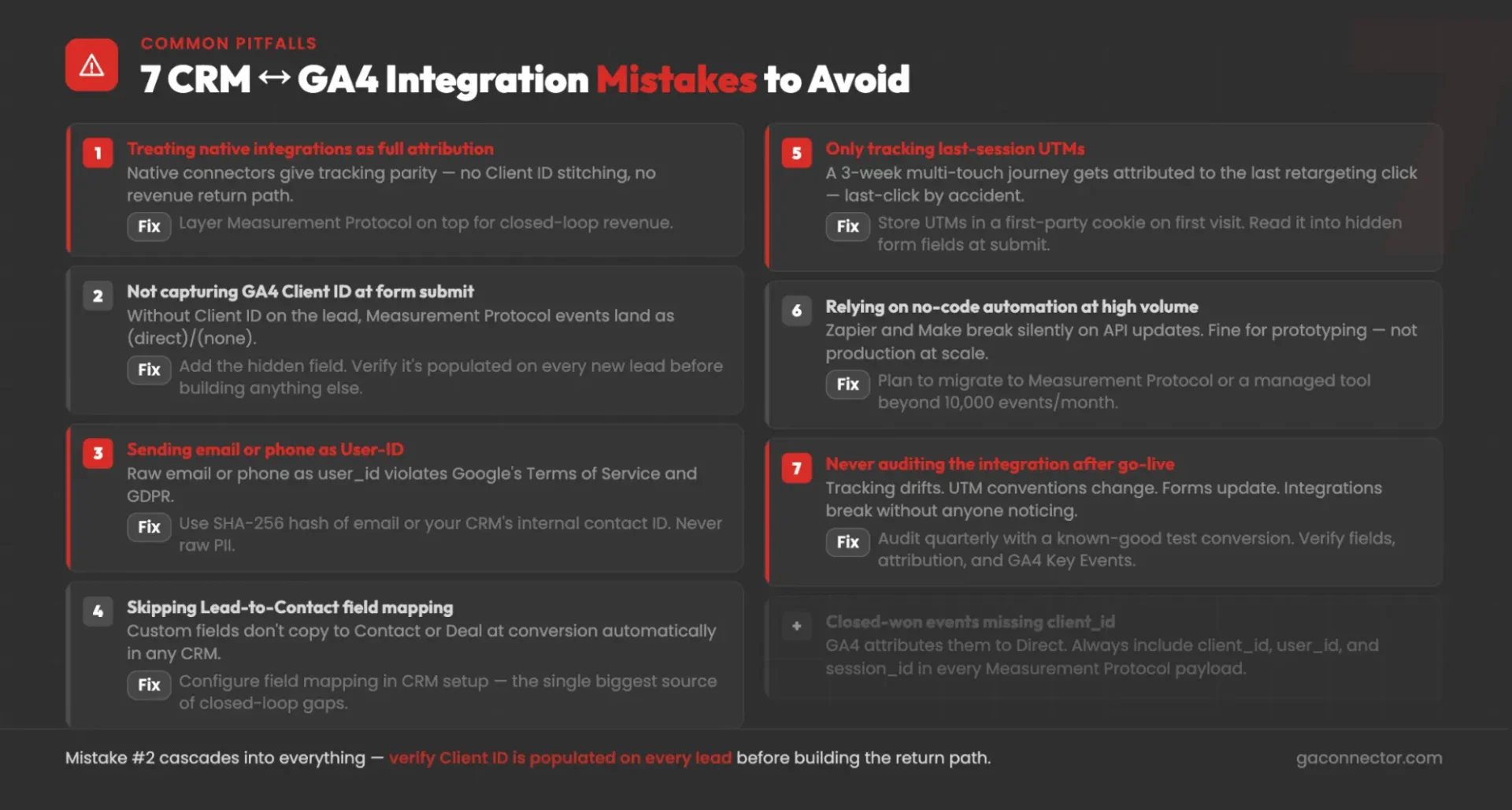
Assuming native integrations provide full attribution. Most built-in integrations only sync basic data. Without Client ID tracking and revenue flowing back into GA4, you only see part of the customer journey.
Not capturing the GA4 Client ID on form submission. This is one of the most common causes of failed attribution setups. Without the Client ID, offline conversions cannot be connected to the original website session.
Using email addresses or phone numbers as User-IDs. This violates Google’s policies. Use an internal CRM ID or another non-identifiable identifier instead.
Missing field mapping during CRM lifecycle changes. Custom fields often don’t automatically transfer when a lead becomes a contact, opportunity, or deal. If mapping isn’t configured correctly, attribution data can disappear partway through the sales process.
Tracking only the last-touch source. Many customers interact with multiple campaigns before converting. Looking only at the final click hides the role earlier channels played in generating the lead.
Relying on no-code tools at scale. Automation platforms work well for small projects and testing, but they can become difficult to monitor and maintain as event volume grows.
Never auditing the setup. Tracking issues, broken UTMs, and configuration changes happen over time. Regular testing and audits help ensure attribution data remains accurate.
Sending revenue events without the original Client ID. When GA4 cannot match an offline event to the original user, it often attributes the conversion to Direct traffic, reducing the accuracy of your reporting.
When to build vs. use a managed integration
Build your own integration if: You have developer resources available, your CRM setup requires custom logic that existing tools can’t support, or your scale makes a custom solution more cost-effective than a subscription product.
Use a managed integration if: You’re a small or mid-sized business, use a common CRM such as Salesforce, HubSpot, Pipedrive, or Zoho, and want reliable attribution reporting without a lengthy implementation project.
For many teams, a managed solution offers the fastest path to full-funnel attribution. Instead of building and maintaining multiple integration layers, you get Client ID capture, source tracking throughout the customer lifecycle, and automatic revenue reporting back to GA4 in a single setup.
GA Connector is designed for this use case. It captures Client IDs, preserves attribution data as leads move through the CRM, and automatically sends revenue and conversion events to GA4. It provides many of the benefits of a custom integration without the ongoing development and maintenance effort.
See the Bizible alternative overview and Pardot alternative overview for how it compares.
Ship the integration, audit it monthly
Connecting a CRM to GA4 isn’t a one-time task. It’s an ongoing system that needs the right integration method, regular monitoring, and occasional adjustments as your tools and processes change.
For most businesses, the best approach is to start with a native integration, add Measurement Protocol or a managed solution for revenue tracking, and use Data Import or BigQuery when more advanced reporting is needed. Regular testing and audits help ensure attribution remains accurate over time.
For SMBs using major CRM platforms, connecting CRM and GA4 data is often the fastest way to move from basic lead tracking to reliable revenue reporting. A managed solution like GA Connector can simplify the process by handling Client ID capture, attribution data, and revenue reporting in one setup, reducing the need for custom development and ongoing maintenance.
CRM integration FAQs
What is CRM integration with Google Analytics?
CRM integration with GA4 is a two-way data connection between your customer relationship management CRM and Google Analytics 4. Web traffic source data flows onto CRM lead records; CRM events like deal closes flow back to GA4 as conversions. The result is attribution that reflects the entire customer lifecycle – not just form fills.
What are the main benefits of CRM integration with GA4?
You centralize customer data into a single source of truth, eliminate data silos between sales and marketing, reduce manual data entry across multiple systems, and report on closed-won revenue by channel. Customer satisfaction improves when sales teams have full context. Attribution becomes defensible to a CFO.
What’s the difference between GA4 Client ID and User-ID?
Client ID is GA4’s default visitor identifier – auto-generated per browser, not PII. User-ID is one you supply: your CRM’s internal contact ID or a SHA-256 hash of the email. Never send raw email addresses as User-ID; that violates Google’s Terms of Service.
How do you send closed-won revenue from a CRM back to GA4?
Via the Measurement Protocol. When a deal reaches Closed-Won, your code POSTs a purchase event to the GA4 endpoint with the deal value and stored GA4 client_id. GA4 stitches it to the original session and attributes revenue to the originating source.
Is it GDPR-compliant to send CRM data to Google Analytics?
Yes, with the right setup. Don’t send PII. Configure Consent Mode for EU traffic. Use an integration solution that works with your consent platform rather than around it.
Can you connect any CRM to GA4, or only the major ones?
Any CRM with an API can be connected. HubSpot, Salesforce, Pipedrive, and Zoho have well-documented paths. Legacy systems typically require the full DIY path: GTM, Measurement Protocol, and custom field mapping.
What is the GA4 Measurement Protocol and when do you need it?
Google’s server-to-server API for sending events to GA4 without the browser. You need it when the conversion happens offline – a deal closing in a CRM, a phone call, a contract signature. The only realistic path to true closed-loop attribution if you’re building the integration yourself.
How long does it take to set up a CRM ↔ GA4 integration?
A native CRM integration takes minutes. No-code automation takes hours. A full Measurement Protocol build takes weeks from scratch, or a few days with a managed integration tool.