UTM parameters are tracking tags added to a website URL that tell analytics tools where a visitor came from. In Google Ads, you can set up UTM tracking automatically using URL suffixes — no manual tagging on each ad required. This guide covers the exact setup steps, how campaign parameters interact with Google Analytics 4, and how to run them alongside Google’s auto-tagging.
UTM Parameters and Google Ads: What You Actually Need to Know
Google Ads has auto-tagging built in — a system that appends a GCLID (Google Click Identifier) to every URL when someone clicks your ad. GCLID passes data to Google Analytics automatically. In theory, you don’t need UTM parameters at all.
In practice, UTMs still matter. Here’s why.
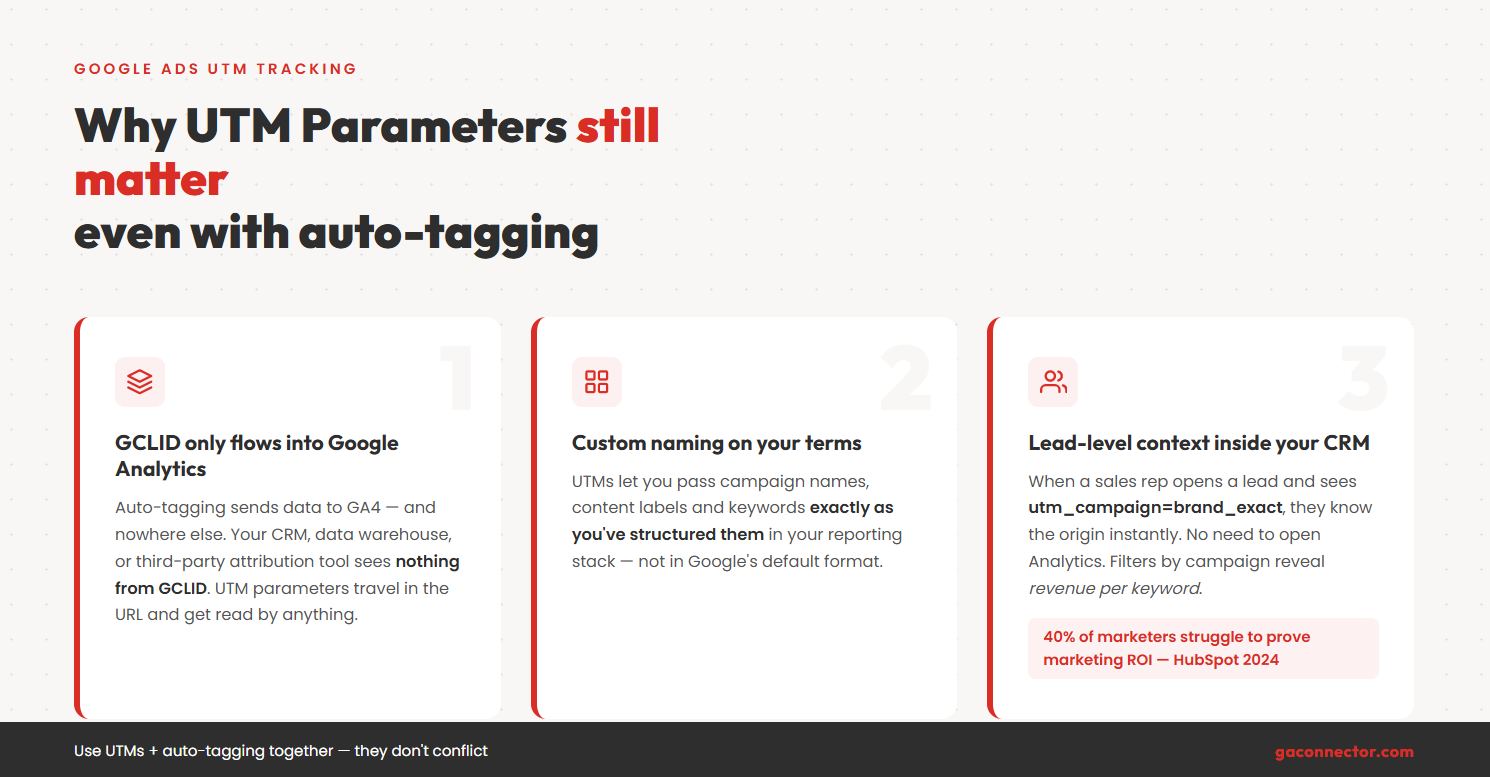
GCLID data only flows into Google Analytics. If you use any other analytics tool, a third-party attribution platform, or you want website traffic data in your CRM, GCLID is useless. UTM parameters travel in the URL and get read by anything that parses query strings — Google Analytics 4, your CRM, your attribution tool, your data warehouse.
UTMs also let you add custom campaign structure that GCLID doesn’t provide. You can pass campaign names, ad content labels, and keyword terms exactly as you’ve structured them in your own reporting system, not just in Google’s format.
And capturing UTM parameters in lead forms puts real marketing context inside each CRM record. When a sales rep opens a lead and sees utm_source=google / utm_medium=cpc / utm_campaign=brand_exact, they know the origin without touching Analytics. According to HubSpot’s 2024 State of Marketing report, proving ROI of marketing efforts remains the top challenge for marketers. UTM-level attribution is where you start fixing that.
What UTM Parameters Are
UTM parameters — sometimes called UTM codes — are five standard query string values developed by Urchin, the analytics company Google acquired in 2005. The acronym stands for Urchin Tracking Module. The five parameters:
utm_source — Where the traffic came from (google, facebook, newsletter).
utm_medium — The marketing medium or channel (cpc, email, organic).
utm_campaign — The campaign name you assign (summer_sale, brand_keywords).
utm_content — Differentiates ads within the same campaign (ad_variation_a, headline_test).
utm_term — The keyword that triggered the ad.
For Google Ads, all five are useful. The first three are required for proper attribution in GA4. utm_content and utm_term become essential when you’re tracking keyword-level performance or running A/B tests on ad creatives.
Why Manual UTM Tagging on Every Ad Breaks Down
The old approach was to append UTM parameters directly to each ad’s final URL. Every ad, every ad group, every marketing campaign gets its own tagged URL. When you rename a campaign or restructure ad groups, every URL needs manual updates. One missed update silently breaks attribution — often for days before anyone notices.
URL suffixes fix this. Set a template once at the account, campaign, or ad group level, and Google Ads appends it automatically to every ad underneath. Change the suffix once and it propagates everywhere. No more hunting through hundreds of ad URLs.
How to Add UTM Parameters Automatically via URL Suffix
URL suffixes are the right method for adding campaign parameters in Google Ads today. The older approach — tracking templates — stopped working reliably when Google rolled out parallel tracking in 2018. Parallel tracking loads the landing page and fires tracking requests at the same time, which broke redirect-based tracking templates. URL suffixes append parameters directly to the final URL without a redirect, so they work fine.
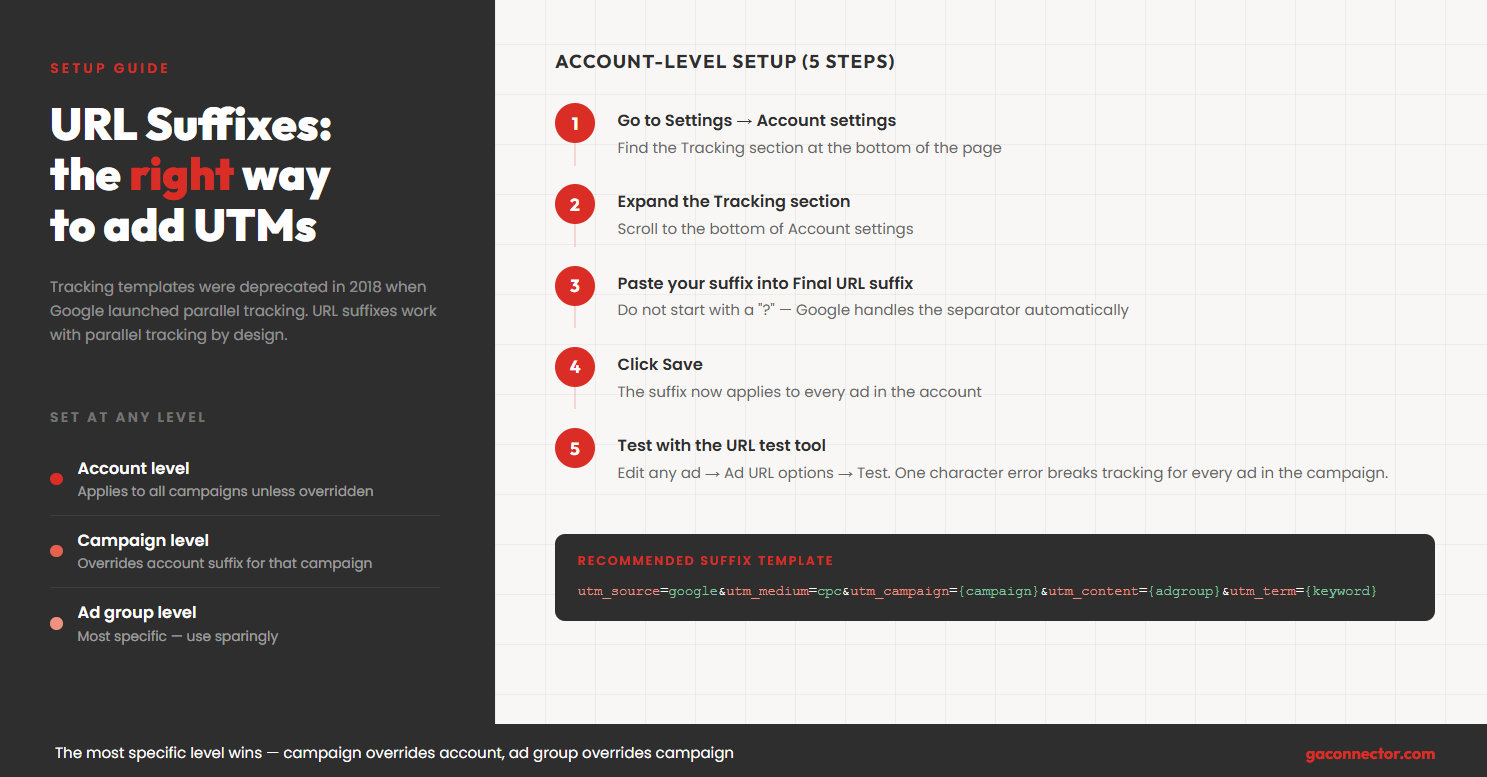
You can set a URL suffix at three levels: account, campaign, or ad group. The most specific level wins. Most advertisers set one at the account level and only override at campaign level when needed.
Setting a URL Suffix at the Account Level
The account-level suffix applies to every campaign unless a lower level overrides it.
- In Google Ads, go to Settings in the left nav
- Select Account settings
- Expand Tracking at the bottom
- In the Final URL suffix field, paste your suffix
- Click Save
Your suffix should look like this:
utm_source=google&utm_medium=cpc&utm_campaign={campaignid}&utm_content={adgroupid}&utm_term={keyword}
Don’t include a ? at the start — Google Ads handles the separator automatically. If your website URL already has query parameters on the landing page (e.g., example.com/page?ref=homepage), Google appends your suffix with & rather than ?.
Setting a URL Suffix at the Campaign Level
Use this when specific campaigns need different UTM values — brand versus competitor, Search versus Display, that kind of thing.
- Go to Campaigns in the left nav
- Select the campaign you want to configure
- Click Settings → scroll to Additional settings
- Expand Campaign URL options
- In Final URL suffix, enter your suffix
- Click Save
Campaign-level settings override the account-level suffix for every ad in that campaign.
Setting a URL Suffix at the Ad Group Level
Same process as campaign level, but inside a specific ad group’s settings. Use this sparingly — only when an ad group targets a completely different product line that needs its own tracking. Over-applying ad group suffixes turns into a maintenance headache fast.
Testing Your URL Suffix Before Launch
Before anything goes live, use the built-in URL test tool:
- Open any ad in the campaign where you set the suffix
- Click Edit → Ad URL options
- Click Test next to the Final URL
Google shows the full URL it will actually serve, with ValueTrack variables substituted for real values. If your UTM parameters appear correctly, you’re good. If you see double question marks, missing ampersands, or empty {placeholders} where values should be — fix it before the campaign runs.
One character error — a stray ?, a misplaced & — silently kills tracking on every ad in the campaign.
ValueTrack Parameters: Dynamic UTM Values for Google Ads
ValueTrack parameters are Google’s dynamic substitution variables for URL suffixes. Instead of hardcoding campaign data like a campaign name — which breaks the moment you rename it — you use a placeholder that Google replaces in real time at each click.
According to Google Ads Help documentation, ValueTrack parameters work across Search, Display, Shopping, Video, and Performance Max campaigns, with some parameters unavailable on specific campaign types.
The Most Useful ValueTrack Parameters
| Parameter | What It Inserts | Example Output |
| {campaignid} | Campaign ID number | 12345678 |
| {campaign} | Campaign name | brand-keywords |
| {adgroupid} | Ad group ID number | 98765432 |
| {adgroup} | Ad group name | broad-match-shoes |
| {keyword} | Keyword that triggered the ad | running shoes sale |
| {matchtype} | Keyword match type | e (exact), p (phrase), b (broad) |
| {device} | Device type | m (mobile), t (tablet), c (computer) |
| {placement} | Placement URL for Display | example.com |
| {network} | Ad network | g (search), s (search partners), d (display) |
| {creative} | Ad creative ID | 456789 |
| {loc_physical_ms} | Physical location ID | 9061285 |
| {product_id} | Product ID for Shopping | SKU-12345 |
The Recommended URL Suffix Templates
For most Search campaigns:
utm_source=google&utm_medium=cpc&utm_campaign={campaign}&utm_content={adgroup}&utm_term={keyword}
If you’d rather use IDs than names (IDs survive renames; names are easier to read in reports):
utm_source=google&utm_medium=cpc&utm_campaign={campaignid}&utm_content={adgroupid}&utm_term={keyword}
For Performance Max — {keyword} returns empty because PMax doesn’t work on keywords:
utm_source=google&utm_medium=cpc&utm_campaign={campaign}&utm_content=performance-max
For Shopping campaigns, swap {keyword} for {product_id} to get product-level tracking:
utm_source=google&utm_medium=cpc&utm_campaign={campaign}&utm_content={adgroup}&utm_term={product_id}
The utm_medium Value That Breaks GA4
For paid search, utm_medium=cpc is the only value that reliably works. According to Google’s GA4 documentation on channel groupings, the Paid Search channel requires utm_medium to match a recognized list including cpc, ppc, and paidsearch.
Use paid, ads, or google-ads instead, and your traffic drops into the Unassigned bucket. You probably won’t notice for a week — until someone asks why Paid Search is down 30% and Unassigned has mysteriously spiked.
UTM Parameters in Google Analytics 4: How It Actually Works
GA4 reads UTM parameters from the landing page URL the moment a session starts. If they’re present, GA4 uses them for session-level attribution. This replaced Universal Analytics behavior, where UTMs set the traffic source for the entire visit regardless of how long it lasted.
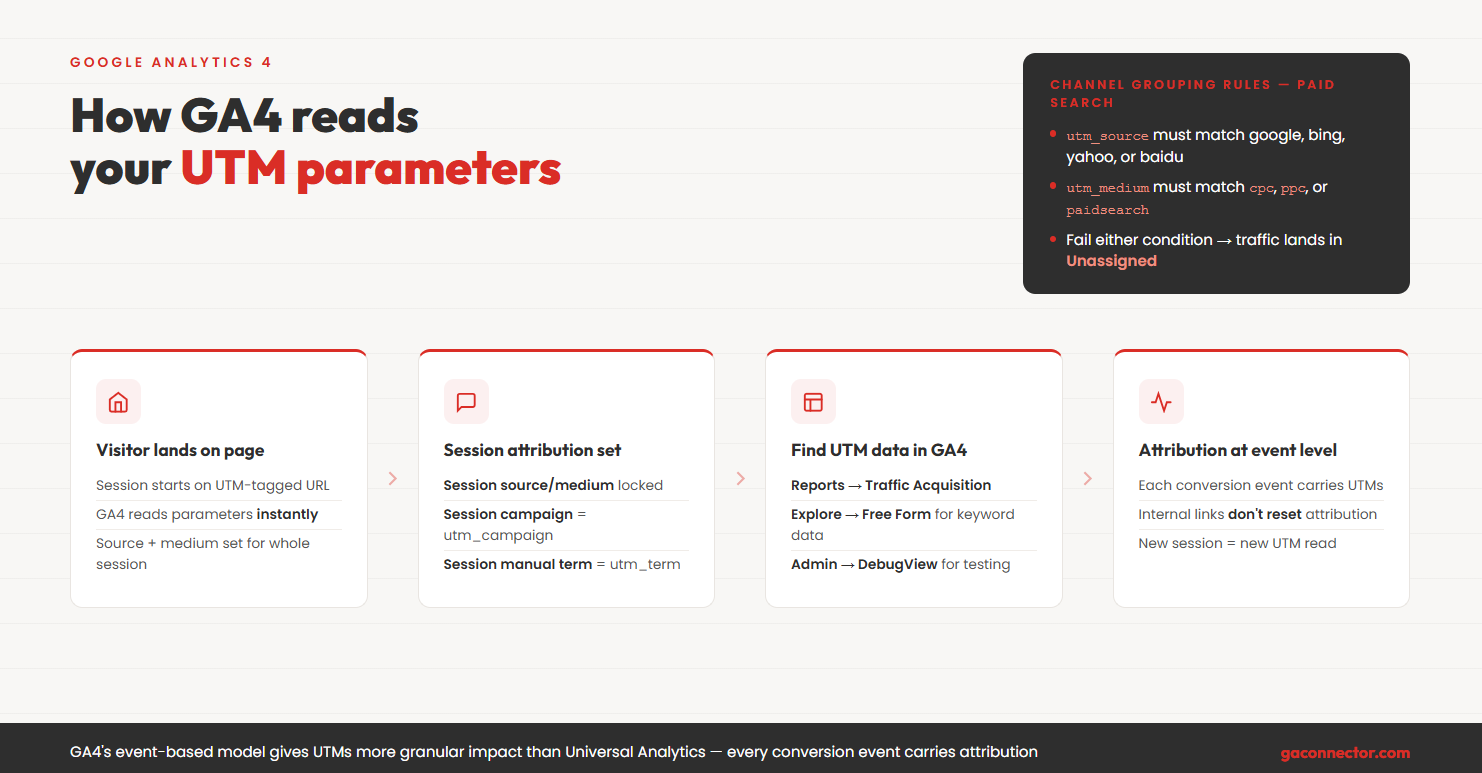
The shift to GA4 actually made UTM accuracy more important. According to Google’s GA4 migration documentation, GA4 uses an event-based data model rather than session-based — attribution is evaluated at the individual event level. That means your utm_campaign and utm_term values show up against specific conversion events, not just rolled up to session level.
How GA4 Session Attribution Works with UTMs
GA4 uses a session-scoped source/medium model by default. UTM parameters on the landing page set the source and medium for the whole session. A user arrives via google/cpc, browses five pages, submits a form — the whole session, including the form submission event, gets attributed to google/cpc.
In GA4 reports and explorations, UTM data lives under these dimensions: Session source / medium, Session campaign, Session manual ad content, and Session manual term. GA4 carries attribution through to the event level for conversions, so you can tie specific goals to specific UTM values — not just traffic volumes.
Where to Find UTM Data in GA4
Reports → Acquisition → Traffic Acquisition is the starting point. Session source/medium is the default dimension. Filter to google / cpc, then add Session campaign or Session manual term as a secondary dimension for keyword-level breakdown.
Explore → Free Form is where the real work happens. Build a custom exploration with Session campaign and Session manual term as dimensions, conversion events as metrics. No spreadsheet export needed.
Admin → DebugView is for testing. Load a UTM-tagged URL while DebugView is open and watch session_start fire with your parameters. If they appear there, tracking is working.
One thing worth knowing: internal links between pages on your own site don’t reset UTM attribution within an active session. The campaign source and medium set on the landing page stick for the whole session, regardless of how many pages the visitor navigates through.
The GA4 Channel Grouping Problem
For Google Ads traffic to land in GA4’s Paid Search channel, two things must be true: utm_source must match a recognized search engine, and utm_medium must match a recognized paid medium. If either fails, traffic lands in Unassigned.
You can audit this fast. Go to Traffic Acquisition and look for Unassigned volume that appears on the same dates as your ad spend. That’s usually the culprit.
Custom channel groups under Admin → Data Display → Channel Groups can patch edge cases, but it’s always better to fix the UTM values at the source than to maintain a workaround in GA4.
Auto-Tagging vs UTM Parameters: Using Both Together
Auto-tagging and UTM parameters coexist fine — using both is the standard setup for serious Google Ads advertisers.
Auto-tagging appends GCLID on every click. GCLID carries data UTMs can’t: bid strategy type, ad position, quality score components, impression share, and other Google Ads-native metrics. When GCLID is linked, GA4 pulls this directly from your Google Ads account and surfaces it in the Advertising workspace.
UTM parameters cover everything else — tracking outside GA4, consistent naming across marketing campaigns and platforms, CRM-level attribution, and compatibility with any tool that reads URL query strings. According to Northbeam’s 2023 State of Marketing Attribution report, over 60% of performance marketers use UTMs across all paid channels for cross-platform consistency. GCLID alone doesn’t do that job — and if you’re evaluating which marketing attribution model to use across those channels, UTM naming consistency matters even more.
When UTMs Override GCLID in GA4
When both GCLID and UTM parameters are in the URL, GA4 uses GCLID for attribution by default. To flip it:
- In GA4, go to Admin → Property Settings → Advanced Settings
- Enable Allow manual tagging (UTM values) to override auto-tagging (GCLID values)
Turn this on if your entire reporting structure runs on consistent UTM naming and you want GA4 to match. Leave it off if you rely on the Google Ads/GA4 integration for bid strategy data and impression share.
Most advertisers leave auto-tagging on and let GCLID handle GA4, while UTMs handle everything else. Both signals are in the URL at the same time. They don’t interfere with each other.
Capturing UTM Parameters in Your CRM and Lead Forms
UTM parameters in the URL are only useful if something reads them. GA4 does this automatically. Getting UTM data into individual CRM records is a different problem.
The standard method uses hidden form fields. When a visitor arrives from a Google Ads click, a tracking script reads the UTM parameters from the URL and pre-fills hidden fields in your lead form. When the form submits, those values go into the CRM alongside the contact data. For a step-by-step walkthrough of this setup, see our guide on how to capture UTM parameters in your contact forms.
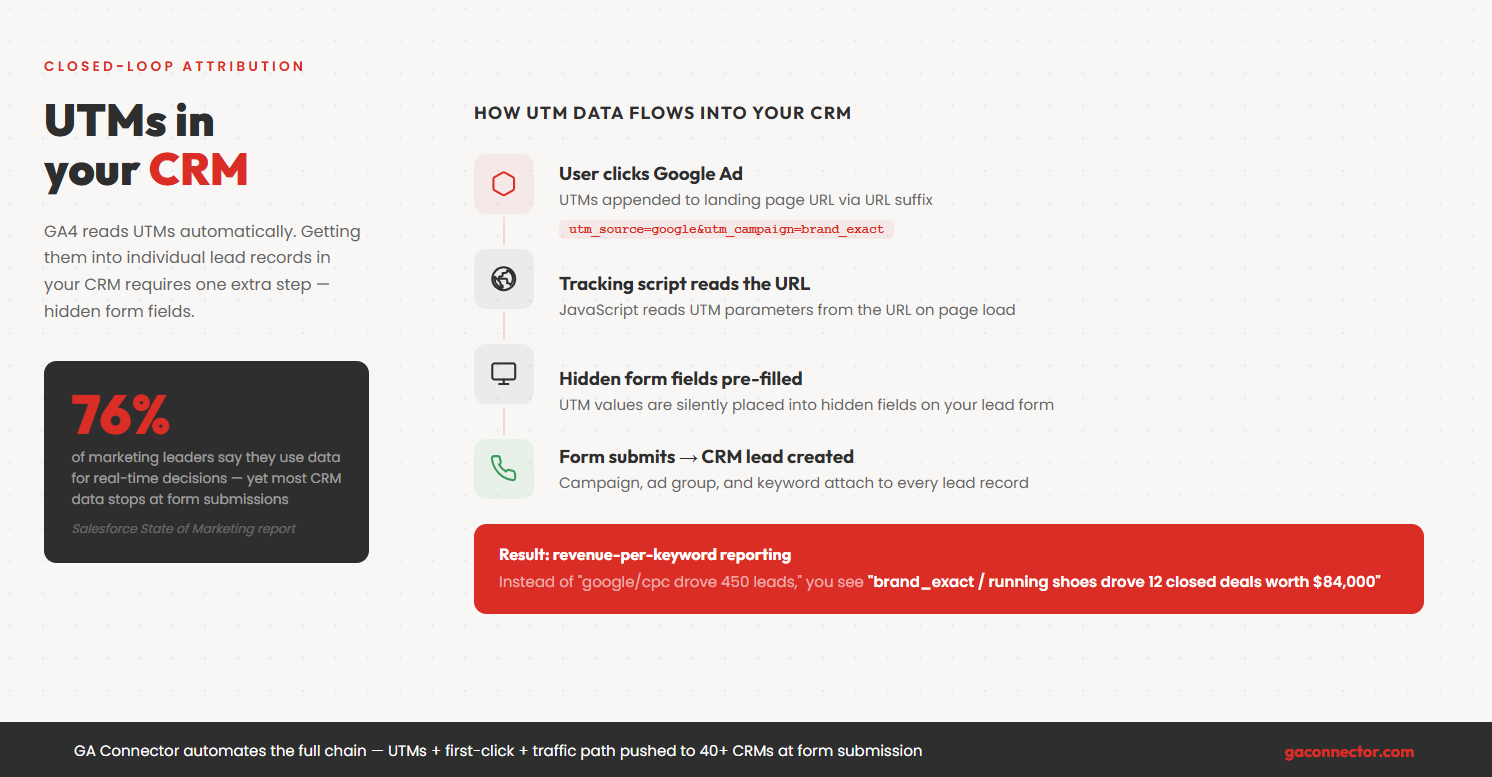
Every lead record then carries the campaign, ad group, and keyword that brought that person in. Sales reps have context. You can filter your CRM by utm_campaign and see actual closed revenue per keyword — not cost-per-click, closed deals.
According to Salesforce’s State of Marketing report, 76% of marketing leaders claim they use data for real-time decisions, but the gap between ad platform data and CRM revenue data is still one of the most common frustrations in B2B marketing. It’s a full-funnel attribution problem: most teams are making decisions from analytics data that stops at form submissions.
GA Connector automates the full chain. When a visitor arrives from Google Ads, it captures first-click source, last-click source, UTM parameters, full traffic path, and session behavior — then pushes it to the CRM lead record at form submission. It works with Salesforce, HubSpot, Pipedrive, Zoho, and 40+ others.
The reporting shift matters more than it sounds. Instead of “google/cpc drove 450 leads this month,” you get “google/cpc / brand-exact / running shoes drove 12 closed deals worth $84,000.” That’s what actually moves budget decisions.
Common UTM Mistakes in Google Ads
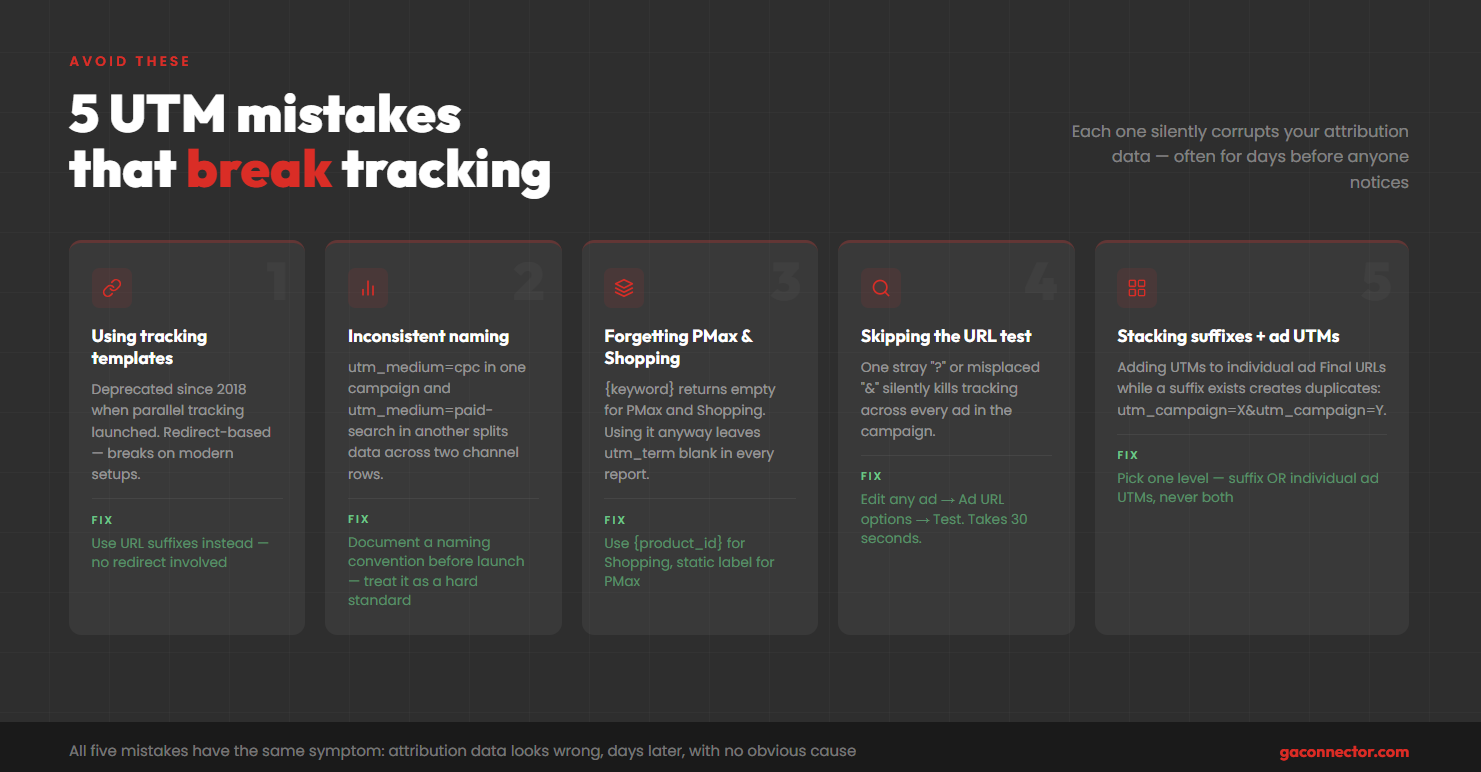
Still Using Tracking Templates
Tracking templates were the recommended approach before parallel tracking existed. They add a redirect before the final URL loads — which directly breaks parallel tracking. URL suffixes don’t redirect. If your account still has tracking templates, replace them.
Inconsistent Naming Conventions
utm_medium=cpc in one campaign and utm_medium=paid-search in another means GA4 splits your paid traffic across two different channel rows. It looks like a drop in paid search performance when it’s actually just fragmented data. Pick names before you launch, write them down, and don’t let anyone freelance them.
Forgetting Non-Search Campaign Types
{keyword} returns empty for Performance Max and Shopping — there are no keywords. For Shopping, {product_id} gets you product-level tracking. For App campaigns, many ValueTrack parameters don’t exist. Test your suffix against every campaign type you run, not just Search.
Skipping the URL Test
A stray ?, a duplicate &, or campaign names with spaces that don’t encode correctly will silently break tracking across every ad in the campaign. The URL test takes 30 seconds. Run it every time.
Stacking Suffixes and Manual Ad UTMs
Adding UTM parameters to an individual ad’s Final URL while a URL suffix exists at campaign or account level gives you duplicate parameters in the final URL — utm_campaign=brand&utm_campaign=brand_exact both present. Most tools use the first value, but some don’t. Don’t rely on that. Pick one approach.
FAQ
Do I need UTM parameters if I’m using Google Ads auto-tagging?
Not for GA4 — GCLID handles attribution there when auto-tagging is on. You need UTMs if you’re tracking anywhere other than GA4, if you want source data in your CRM, or if you need consistent naming across multiple paid channels in a cross-platform attribution setup.
Why are my UTM parameters not showing up in GA4?
Three places to check: (1) use the Google Ads URL test tool to confirm the suffix is actually appending; (2) make sure your landing page isn’t stripping query parameters before GA4 fires — some redirect setups do this; (3) check that utm_medium is a value GA4 recognizes for channel grouping. An unrecognized medium goes to Unassigned and is easy to miss.
Can I use UTM parameters with Smart Bidding?
Yes. Smart Bidding uses GCLID and conversion signals for optimization. UTM parameters are query string values sitting in the URL — they don’t touch bidding logic at all.
What’s the difference between {campaignid} and {campaign}?
{campaignid} is the numeric ID. It never changes, even if you rename the campaign. {campaign} is the name as it appears in Google Ads — readable in reports, but it breaks if someone renames the campaign mid-flight. For large accounts that restructure frequently, use IDs. For smaller accounts where names are stable, either works.
Does using UTM parameters affect Quality Score?
No. Quality Score looks at landing page experience — relevance, speed, mobile usability. Query string parameters don’t factor into any of that.
Can I capture Google Ads UTM parameters in Salesforce or HubSpot directly?
Not natively. UTMs live in the URL and don’t flow into CRMs on their own. You need hidden form fields that capture UTM values on submission, or a tool like GA Connector that reads UTMs from the session and maps them to CRM lead fields automatically. For the manual Salesforce setup, see our walkthrough on tracking UTM parameters in Salesforce Web-to-Lead forms.
What happens when someone clicks an ad, bounces, and comes back three days later from organic?
The return visit starts a new session. GA4 reads the URL — no UTM parameters — and attributes it to google/organic. The original google/cpc session stays in GA4’s history attributed correctly. But GA4 doesn’t carry that first-click attribution forward to the second session. If you need first-click preserved at the lead level across multi-session journeys, you need a tool that captures and stores it at form submission.

Sergii Zuiev is the founder of GA Connector, a marketing attribution platform helping sales and marketing teams track revenue back to the channel, campaign, and keyword level. With a background in PPC and marketing technology, he built GA Connector in 2015 after experiencing firsthand the frustration of not knowing which ads actually drove revenue, and turned that insight into a product now used by hundreds of companies globally.


