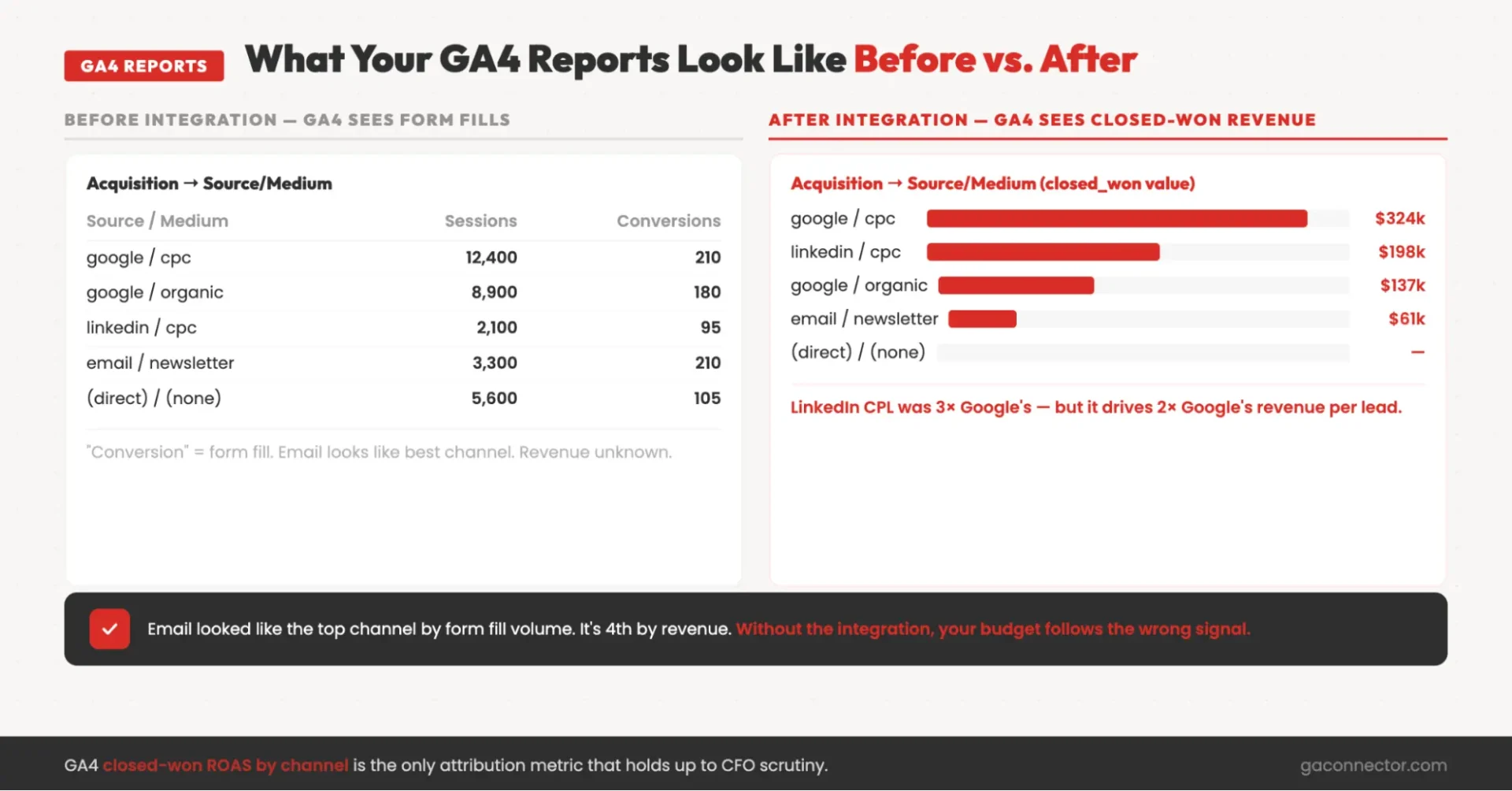
Your GA4 dashboard shows 800 conversions last month. Your Salesforce Opportunities report shows 64 closed-won deals worth $720k. Nowhere in either tool can you see which of those 800 became which of those 64 – or which campaign earned the $180k deal that closed last Tuesday.
That’s the Salesforce Google Analytics integration problem. The Salesforce GA4 integration doesn’t exist natively – there’s no official connector in GA4 Admin or on the AppExchange you can click “Install” on and have it work. What is there instead: six integration methods that together form a complete connect Salesforce-to-Google Analytics stack. Knowing how to integrate Salesforce with Google Analytics 4 – and which of the six methods apply to your team – is what this guide is for.
This guide focuses specifically on GA4. Since Universal Analytics was retired in 2023, older Salesforce attribution setups often no longer work as intended. To build reliable revenue attribution today, you need a GA4-based integration that connects customer activity in Salesforce with marketing and website data in Google Analytics.
What is “Salesforce Google Analytics integration”
A complete Salesforce–GA4 integration works in both directions.
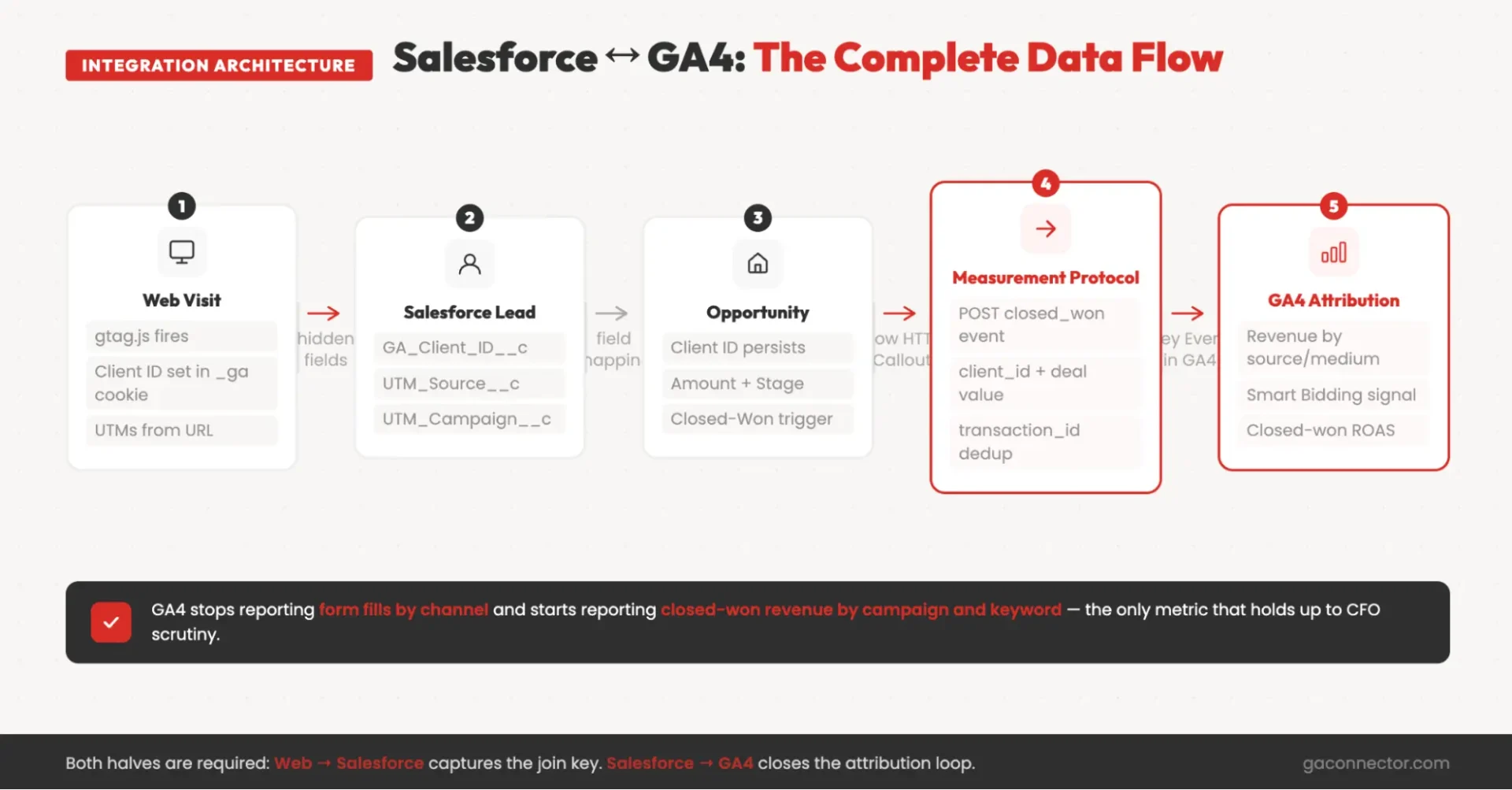
GA4 → Salesforce: Marketing attribution data such as source, medium, campaign, keyword, landing page, and GA4 Client ID is captured when a lead submits a form and stored in Salesforce. That information should then carry through the entire lifecycle, from Lead to Contact to Opportunity, so attribution data remains available when a deal closes.
Salesforce → GA4: Key CRM events such as lead qualification, opportunity stage changes, and closed-won deals are sent back to GA4. Using the original Client ID, GA4 can connect revenue and pipeline activity to the marketing channels that generated them.
Many companies only implement the first part. Salesforce receives attribution data, but GA4 never receives revenue data in return. As a result, marketing reports focus on leads while finance reports focus on revenue, and the numbers rarely align.
It’s also important to understand what this integration is not. This guide focuses on connecting Salesforce Sales Cloud and GA4 for attribution and revenue reporting. It does not cover Marketing Cloud email analytics, Data Cloud, CDPs, or website analytics on their own.
Identifiers matter. The GA4 Client ID is an anonymous browser identifier used to connect website sessions with CRM records. The User-ID is a separate identifier defined by your organization, typically based on an internal CRM ID. These two identifiers serve different purposes, and confusing them can lead to broken attribution or privacy compliance issues.
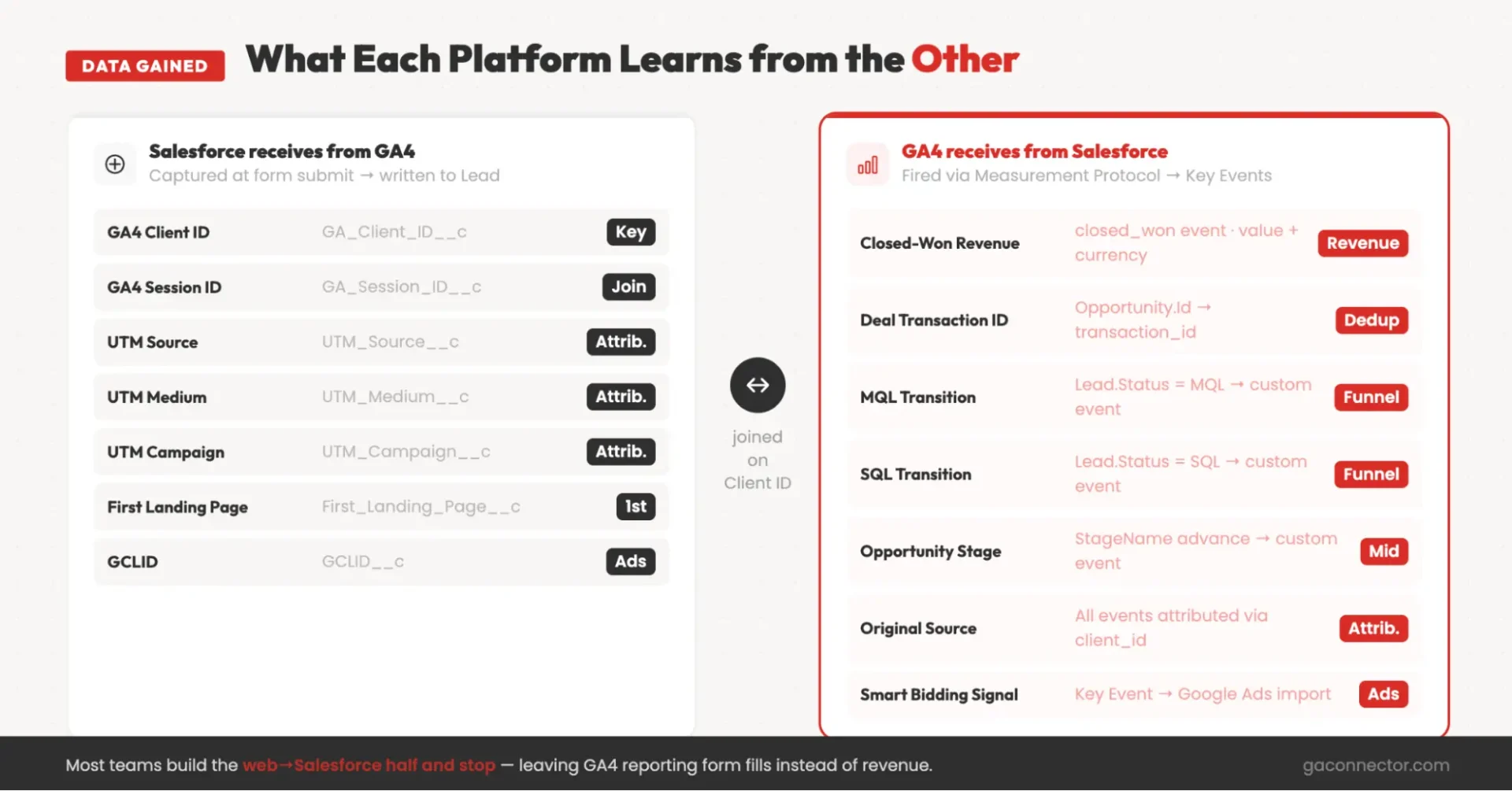
What data you gain on both sides
In Salesforce (captured from the web)
| GA4 / web data | Salesforce custom field | How it’s captured |
| GA4 Client ID | GA_Client_ID__c | Hidden form field populated by gtag.js |
| GA4 Session ID | GA_Session_ID__c | Hidden field from ga_session_id |
| utm_source | UTM_Source__c | Hidden field from URL parameter |
| utm_medium | UTM_Medium__c | Hidden field from URL parameter |
| utm_campaign | UTM_Campaign__c | Hidden field from URL parameter |
| utm_term | UTM_Term__c | Hidden field from URL parameter |
| gclid (Google Ads) | GCLID__c | Hidden field; persisted in cookie |
| First landing page | First_Landing_Page__c | Set on first session; 1st-party cookie |
| Referrer | Referrer__c | document.referrer at form submit |
In GA4 (sent from Salesforce)
- Closed-won revenue – closed_won event via Measurement Protocol, with value, currency, and transaction_id, attributed to the original Client ID. This is the final conversion in the attribution chain – the revenue event that justifies every marketing dollar spent above it.
- MQL/SQL transitions – custom events fired when Lead.Status changes, giving GA4 mid-funnel visibility beyond the initial form fill.
- Opportunity stage events – fired when Opportunity.StageName advances.
- Offline events – phone outcomes, contract signatures, anything tracked in Salesforce.
These events reach GA4 via the Measurement Protocol – GA4’s server-to-server collection API for writing events in, distinct from the Google Analytics Data API (which is for reading google analytics data out). The result: GA4 stops reporting form fills by channel and starts reporting closed-won revenue by channel, campaign, and keyword.
Why connecting Salesforce to Google Analytics matters
- More accurate marketing ROI. Without a Salesforce integration, GA4 only sees form submissions and other website conversions. It can’t tell which leads became customers or generated revenue. When deal and revenue data flows from Salesforce back into GA4, marketers can measure campaign performance based on actual business outcomes rather than lead volume alone and build a credible marketing attribution model.
- Better Google Ads optimization. When closed_won events are sent from Salesforce to GA4 and then shared with Google Ads, bidding algorithms can optimize for high-value customers instead of form fills. This helps advertising platforms focus on the leads most likely to generate revenue rather than the leads most likely to submit a form.
- More reliable attribution. Privacy changes continue to make browser-based tracking less reliable. Capturing the GA4 Client ID when a lead is created in Salesforce and using it throughout the customer journey provides a first-party attribution framework that remains effective even as third-party tracking becomes more limited.
Prerequisites checklist
Confirm these before starting, or you’ll hit a blocker mid-build.
- Salesforce edition: Sales Cloud Professional, Enterprise, or Unlimited. Essentials can’t run HTTP Callouts in Flow or Apex – limited to Methods 1–3.
- Salesforce permissions: Customize Application + API Enabled. Required to create custom fields and Named Credentials.
- GA4 property with Editor access. Required to create custom dimensions and the Measurement Protocol API secret.
- GA4 Measurement ID (G-XXXXXXXXXX): GA4 Admin → Data Streams → your stream → top right.
- GA4 Measurement Protocol API secret: Admin → Data Streams → your stream → Measurement Protocol API secrets → Create. Save it – you’ll only see it once.
- Tag Manager or site code access for the gtag.js client_id snippet.
- Consent Management Platform (if you have EU traffic) to wire up GA4 Consent Mode before go-live.
The 6 ways to connect Salesforce to Google Analytics 4
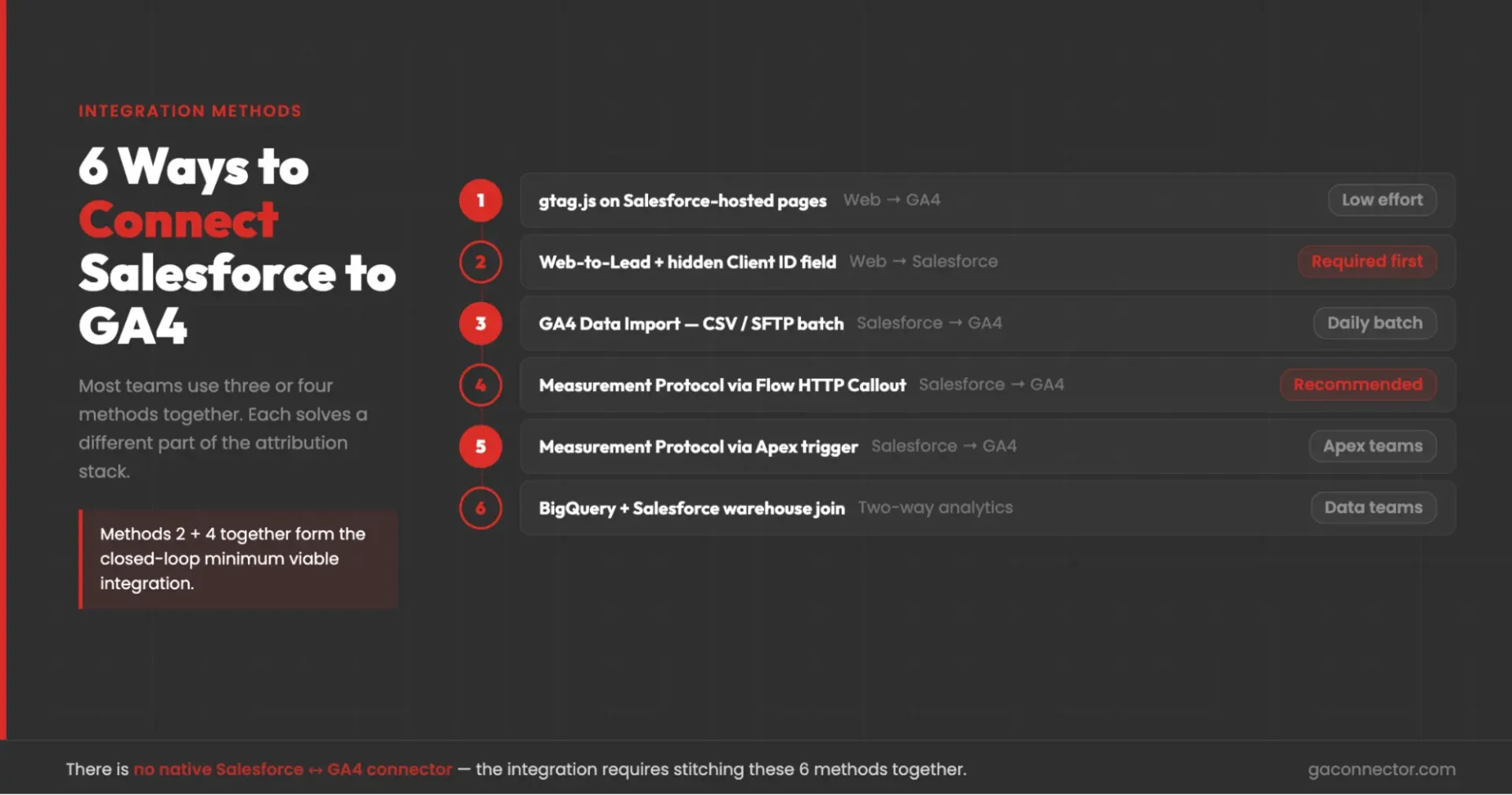
| Method | Direction | Complexity | Best for | Trade-offs |
| 1. Ready-made AppExchange app (GA Connector) | Two-way | Low | Full attribution running fast, no build | Managed solution (paid); standard SF + GA4 stack |
| 2. Web-to-Lead + hidden client_id field | Web → Salesforce | Low–Medium | Capturing the GA4 join key on every Lead | Last-session only without cross-session logic |
| 3. GA4 Data Import (CSV) | Salesforce → GA4 | Medium | Batch enrichment, historical backfills | Daily-batch; no new Key Events |
| 4. Measurement Protocol via Flow HTTP Callout | Salesforce → GA4 | Medium–High | Real-time closed-won events – no Apex | Named Credential + payload mapping required |
| 5. Measurement Protocol via Apex trigger | Salesforce → GA4 | High | Complex logic, retry handling, audit logging | Requires Apex skills and test coverage |
| 6. BigQuery + Salesforce warehouse join | Two-way analytics | High | Custom attribution for mature data teams | ETL setup; daily-batch; not real-time |
A note on gtag.js on Salesforce-hosted pages. If what you actually want is GA4 page tracking on Salesforce-hosted pages — Experience Cloud sites, Site.com pages, or Help portals — that’s a different task from the attribution integration this guide covers: it moves no CRM data, it just reports those pages into GA4. In that case you’d add the gtag.js snippet to the Salesforce-hosted pages directly, through Experience Builder’s head markup.
Method 1: Ready-made AppExchange app (GA Connector)
The fastest path to a complete Salesforce–GA4 integration, and the right starting point for most teams. Instead of hand-building the capture, field-mapping, and Measurement Protocol layers yourself (Methods 2–5), a ready-made AppExchange app installs the whole two-way flow for you.
What it does: GA Connector is a Salesforce AppExchange app that handles the full integration in one package — attribution field creation on Lead, Contact, and Opportunity; GA4 Client ID capture; lead-conversion field mapping; revenue tracking; and Measurement Protocol events back to GA4. It captures marketing source data on every new record and sends closed-won revenue back to GA4 against the original Client ID, so acquisition reports show revenue by channel, campaign, and keyword instead of form fills.
Setup: Install the app from the Salesforce AppExchange, add the tracking snippet to your site, and connect your GA4 property. No custom fields to build, no Flow or Apex to maintain. Typical setup is a few hours plus testing, versus 1–2 weeks for a hand-built stack — and the app absorbs maintenance when Salesforce or GA4 changes.
Best for: Teams that want full-funnel attribution live quickly on a standard Salesforce Sales Cloud + GA4 + Google Ads stack, without dedicating developer time to a custom build or its upkeep.
What this doesn’t do: It’s a managed (paid) solution rather than a from-scratch build. Teams that need fully custom logic or want to own every line of the integration may prefer Methods 4–6.
Done looks like: Marketing source data lands on every new Lead and persists through to the Opportunity, and every closed-won deal flows back to GA4 with correct attribution — without a custom build to maintain.
Install GA Connector from the Salesforce AppExchange → Book a demo →
Method 2: Web-to-Lead form + hidden GA4 Client ID field
The foundational capture step. Every downstream method depends on GA_Client_ID__c being populated on the Lead. Skip this and nothing else produces accurate attribution.
Step 1: Create the custom fields on Lead.
Setup → Object Manager → Lead → Fields & Relationships → New. Create each field from the table above. Non-negotiables: GA_Client_ID__c, GA_Session_ID__c, and the five UTM fields.
Step 2: Generate the Web-to-Lead form.
Setup → Web-to-Lead → Create Web-to-Lead Form. Include the custom fields – they appear as hidden fields in the generated HTML. Paste the form on your marketing site.
Salesforce Web-to-Lead strips JavaScript. The gtag.js snippet cannot run inside the form. Capture the Client ID on the parent page and write it into the hidden fields before submission – via a Custom HTML tag in Google Tag Manager, or inline script.
Step 3: Populate Client ID and Session ID via gtag.js.
|
1 2 3 4 5 6 7 |
gtag('get', 'G-XXXXXXXXXX', 'client_id', function(clientId) { document.getElementById('ga_client_id').value = clientId; }); gtag('get', 'G-XXXXXXXXXX', 'session_id', function(sessionId) { document.getElementById('ga_session_id').value = sessionId; }); |
Replace G-XXXXXXXXXX with your Measurement ID. Match getElementById values to the hidden field IDs in your Web-to-Lead HTML.
Step 4: Add cross-session UTM persistence.
Reading UTMs from the current URL only captures last-session data. The fix: write UTMs to a first-party cookie on first visit; read that cookie into the hidden UTM fields at form submit. See the Salesforce UTM tracking guide for the full implementation.
Step 5: Configure Lead Conversion field mapping.
The most-skipped step. Salesforce does not copy custom Lead fields to Contact or Opportunity at conversion. Configure it manually: Setup → Object Manager → Lead → Map Lead Fields. Without this, GA_Client_ID__c and all UTM fields are present on the Lead and absent on Contact and Opportunity – every Measurement Protocol event then fires attributed to (direct)/(none).
Step 6: Test.
Submit a test form with UTMs in the URL. Open the new Lead – verify all fields populated. Convert the Lead manually – verify the same fields appear on the Contact and Opportunity.
Done looks like: Every new Lead has GA4 and UTM fields populated at creation. Those fields persist through Lead → Contact → Opportunity conversion automatically.
Skip the manual field build. GA Connector ships all these fields pre-configured and the client_id capture logic pre-built. Install from the Salesforce AppExchange →
Method 3: GA4 Data Import for Salesforce data
Batch enrichment. Still useful; not the right answer for real-time attribution.
What it does: Upload a CSV of Salesforce data into GA4 via Admin → Data Import. GA4 joins rows to existing events using client_id as the key. Imported fields become custom dimensions in reports.
Setup: Build a Salesforce report including GA_Client_ID__c and the dimensions to import. Export as CSV – open in a text editor, not Excel (Excel reformats long numeric strings and breaks the join). Format per GA4’s Data Import schema: first column client_id, remaining columns are user properties. Upload at GA4 Admin → Data Import → Create data source.
Key limits: Daily-batch only. Data Import enriches existing events – it does not create new Key Events. Closed Won won’t feed Smart Bidding from Data Import alone. And if GA_Client_ID__c isn’t on the Lead (Method 2 was skipped), there’s nothing to join on.
Done looks like: Lead Status and Opportunity Stage available as custom dimensions in GA4 Acquisition reports, so you can segment MQLs and SQLs by source.
Method 4: Measurement Protocol via Salesforce Flow HTTP Callout
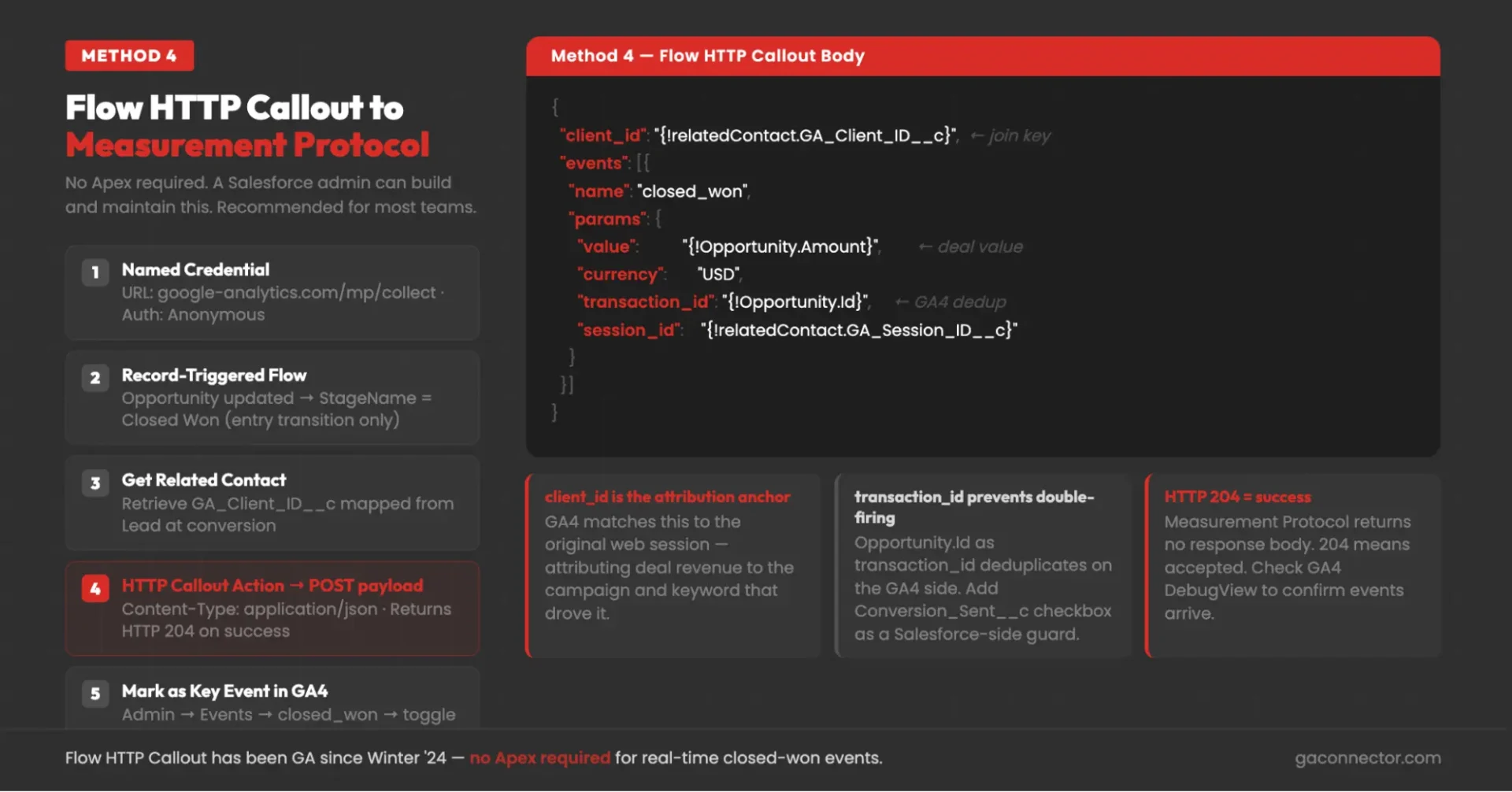
The recommended method for most teams. HTTP Callouts in Flow have been generally available since Winter ’24 for POST requests – no Apex required. A Salesforce admin can build and maintain this.
Step 1: Create the Named Credential.
Setup → Named Credentials → New Named Credential.
- Label: GA4 Measurement Protocol
- URL: https://www.google-analytics.com/mp/collect
- Authentication: Anonymous (auth is via api_secret query parameter)
Step 2: Store credentials as Custom Settings.
Create a Custom Setting for measurement_id and api_secret. Never hardcode either in the Flow. Rotate the API secret quarterly.
Step 3: Build the Record-Triggered Flow.
Setup → Flow → New Flow → Record-Triggered Flow. Object: Opportunity. Trigger: record is updated. Entry condition: StageName Equals Closed Won. Set the “only when record transitions into meeting the condition” flag – otherwise it fires on every save
Step 4: Get the related Contact.
Add a Get Records element to retrieve the primary Contact and its GA_Client_ID__c field – this was mapped from the Lead in Method 2.
Step 5: Add the HTTP Callout Action.
Action: HTTP Callout
Method: POST
URL: Named Credential URL appended with ?measurement_id={!CustomSetting.Measurement_ID__c}&api_secret={!CustomSetting.API_Secret__c}.
Header: Content-Type: application/json
Body:
|
1 2 3 4 5 6 7 8 9 10 11 12 |
{ "client_id": "{!relatedContact.GA_Client_ID__c}", "events": [{ "name": "closed_won", "params": { "value": "{!Opportunity.Amount}", "currency": "USD", "transaction_id": {!Opportunity.Id}, "session_id": "{!relatedContact.GA_Session_ID__c}" } }] } |
Add a Conversion_Sent__c checkbox field on Opportunity as a Salesforce-side guard – check it before firing, set it to true after.
Step 6: Mark as Key Event in GA4.
GA4 → Admin → Events → closed_won → toggle “Mark as key event.” Without this, it won’t appear in conversion reports or feed Google Ads Smart Bidding.
Step 7: Test.
Run with debug logging on a sandbox Opportunity at Closed-Won stage. The HTTP Callout returns HTTP 204 – Measurement Protocol’s success status; no response body. Check GA4 Realtime for closed_won, then wait 24–48 hours to confirm it appears in Acquisition reports with correct source/medium attribution.
Failure modes:
- No client_id on the Contact → event fires attributed to (direct)/(none). Verify Method 2 populated the Lead field.
- PII in the payload – never include email, phone, or name. Opportunity.Id and Contact.Id are safe.
- Rapid stage changes double-fire – Conversion_Sent__c guard both prevent this.
Done looks like: Every Closed-Won Opportunity fires a closed_won event to GA4 within seconds. See the closed-loop marketing for Salesforce guide and closed-loop reporting guide for next steps. For the complete attribution picture, see the full-funnel attribution guide.
Method 5: Measurement Protocol via Apex trigger
For teams with Apex skills and requirements Flow can’t handle cleanly: retry-on-failure with exponential backoff, batching multiple events per request, logging every callout to a custom object for audit/compliance, or conditional logic across many field combinations.
Structure: Apex trigger on Opportunity (after update) detects StageName transition to Closed-Won → calls a @future(callout=true) or Queueable method → builds the Measurement Protocol JSON (identical payload to Method 4) → fires via Http.send(). Named Credential for the endpoint; Custom Settings for credentials. Test class with a mocked HttpCalloutMock response.
The Measurement Protocol POST itself is simple. Most teams choose Apex over Flow for organizational reasons rather than because Flow is insufficient. If you don’t have a specific requirement for Apex, Method 4 is faster to build and easier to maintain.
Reference: Salesforce Apex HTTP Callout documentation.
Done looks like: Same outcome as Method 4 – closed-won events in GA4 with correct attribution – plus Apex-level retry logic and a full audit trail.
Method 6: BigQuery linking
For teams with a data warehouse and custom attribution requirements.
What it does: Link GA4 to BigQuery (GA4 Admin → BigQuery Links → Link). GA4 exports raw event data daily into BigQuery. ETL Salesforce data in via Fivetran, Airbyte, or Salesforce’s native BigQuery Data Cloud connector. Join on user_pseudo_id (GA4’s Client ID in BigQuery) and GA_Client_ID__c in SQL.
Use Daily export for attribution work – Streaming drops attribution fields for new users. Partition GA4 tables by _TABLE_SUFFIX; without partition pruning, queries on large event tables get expensive fast.
Right for: Custom attribution models; cross-platform reporting across GA4, Google Ads, and Salesforce in one query; teams already operating a data warehouse for digital analytics work. Companies that use this layer to deliver exceptional customer experiences do so by understanding cohort behavior at the instance level – something GA4’s built-in reports can’t provide.
Overkill for: Most SMBs without a dedicated data engineer. Methods 4–5 solve the revenue-back-to-GA4 problem without the warehouse overhead.
Done looks like: A unified BigQuery dataset where SQL queries join GA4 events to Salesforce records, feeding Looker Studio dashboards that agree with Salesforce reports.
Connect Salesforce to Google Analytics: build vs. managed integration
Build your own integration if: You have Salesforce and developer resources available, need custom logic or workflows that off-the-shelf tools can’t support, or want complete control over how data is stored, processed, and analyzed.
Use a managed integration if: You’re a small or mid-sized business, want attribution reporting up and running quickly, and use a standard stack such as Salesforce Sales Cloud, GA4, and Google Ads. For many teams, the value of faster implementation and cleaner data outweighs the cost of a managed solution.
Where GA Connector fits. GA Connector is a Salesforce AppExchange solution designed to simplify the Salesforce–GA4 integration process. It handles attribution field creation, Client ID capture, lead conversion mapping, revenue tracking, and Measurement Protocol events without requiring a custom build. It also reduces the maintenance burden by handling updates when Salesforce or GA4 changes. See the full Salesforce attribution walkthrough and GA Connector Salesforce docs.
Enterprise alternative. Large organizations with dedicated analytics and attribution teams often use enterprise platforms such as Adobe Marketo Measure (formerly Bizible). These solutions provide advanced attribution capabilities but typically come with significantly higher implementation and subscription costs.See the Bizible alternative overview and Pardot alternative overview.
Install GA Connector from the Salesforce AppExchange → Book a demo →
Privacy, PII, and Consent Mode
Privacy, PII, and Consent Mode
The most important rule: Never send personally identifiable information (PII) to GA4. This includes email addresses, phone numbers, names, postal addresses, and similar data. PII should never be included in Client IDs, User-IDs, event parameters, or Measurement Protocol requests.
Salesforce record IDs, such as Opportunity IDs and Contact IDs, can be used safely because they do not directly identify an individual. If you use GA4 User-ID, use an internal identifier or a hashed value rather than a raw email address.
GDPR considerations. While the GA4 Client ID is not considered PII under Google’s policies, it may still be treated as personal data under GDPR because it can be linked to an individual over time. Organizations should document the integration in their data processing records and have a process for handling user deletion requests.
Consent Mode. If you operate in regions where consent is required, such as the EU, GA4 Consent Mode should be configured before launching the integration. Consent settings affect how identifiers are stored and how attribution data is collected and reported.
Generally safe to send: Client ID, Session ID, event names, revenue values, currencies, transaction IDs, and Salesforce record IDs.
Do not send: Email addresses, phone numbers, names, addresses, IP addresses, or any other information that can directly identify an individual.
GA4 reports you can build after integration
Closed-won revenue by source and medium. Once Salesforce revenue data is flowing into GA4, acquisition reports can show which channels generate actual revenue rather than just leads or form submissions. This gives you a much more accurate view of marketing ROI.
Closed-won revenue by campaign and keyword. Campaign and keyword reports become far more valuable when they include deal value and revenue. Instead of optimizing for clicks or conversions, you can identify the campaigns that generate customers and revenue.
Lead progression by traffic source. By sending lead status updates from Salesforce to GA4, you can analyze how leads move through the funnel by channel. This helps reveal which sources generate qualified opportunities and which generate leads that never progress.
Google Ads optimization based on revenue. When closed-won deals are tracked as GA4 conversions and imported into Google Ads, Smart Bidding can optimize toward revenue rather than form fills. For many B2B companies, this is one of the most valuable outcomes of a Salesforce–GA4 integration.
Many managed solutions also provide pre-built dashboards and reports, making it easier to start analyzing revenue attribution without building every report from scratch.
Common Salesforce ↔ GA4 integration mistakes
Not capturing the GA4 Client ID when a lead is created. The Client ID is what connects website activity to Salesforce records. If it isn’t stored on the lead, attribution becomes much harder later in the process.
Missing Lead-to-Contact and Opportunity field mapping. Custom attribution fields do not automatically transfer during lead conversion. If mapping is not configured correctly, valuable attribution data can be lost before a deal closes. See the mapping documentation.
Tracking only the most recent UTM values. Customers often interact with multiple campaigns before converting. Storing only the last touchpoint creates an incomplete picture of the customer journey.
Sending personal information to GA4. Email addresses, phone numbers, and other personally identifiable information should never be used as User-IDs or sent through event parameters.
Using outdated Salesforce automation tools. New integrations should rely on Salesforce Flow or custom development rather than older automation features that are being phased out.
Poor credential management. API keys and secrets should be stored securely and reviewed regularly instead of being hardcoded into scripts or workflows.
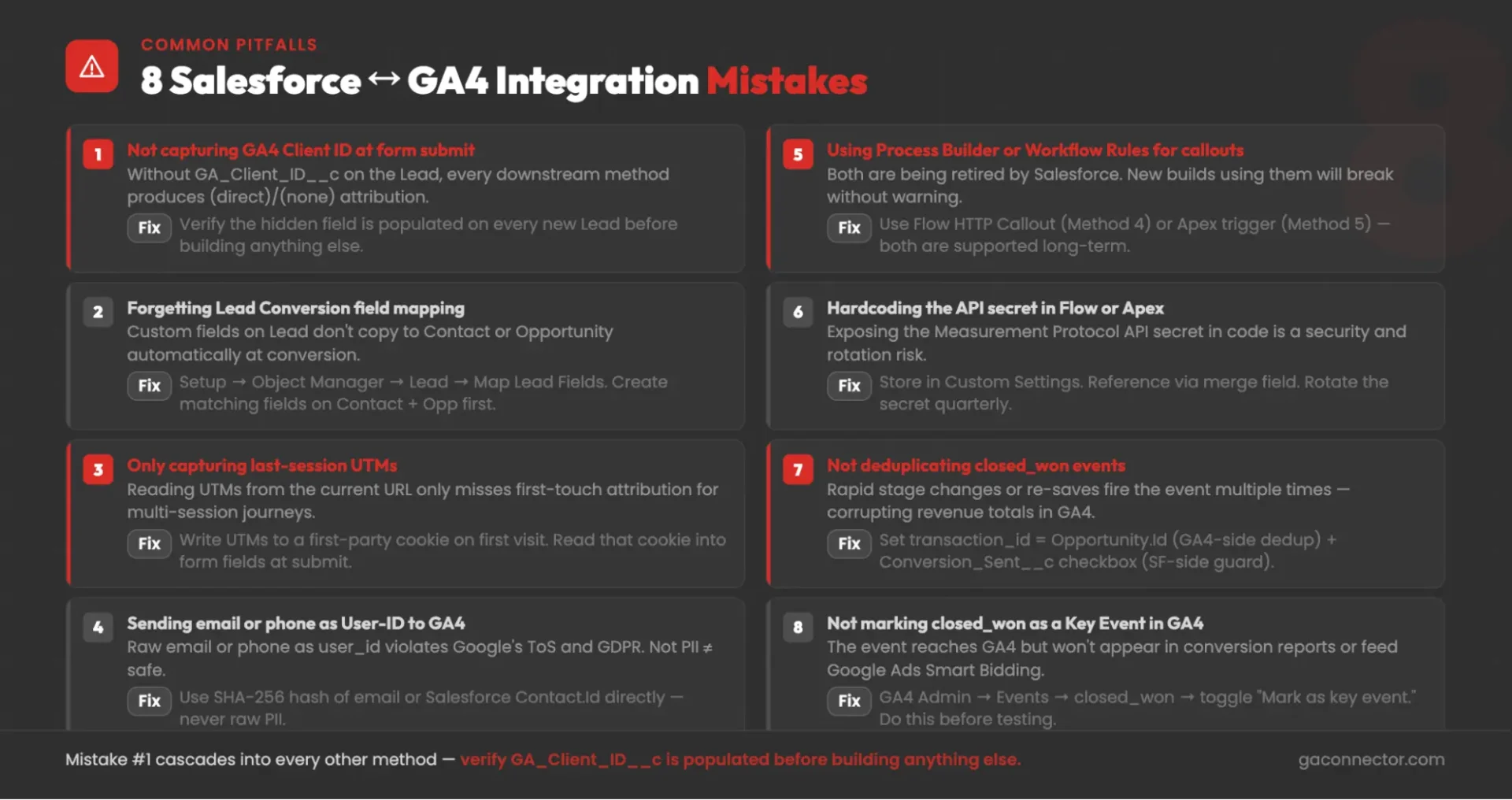
Not preventing duplicate events. Without proper safeguards, the same opportunity or revenue event can be sent to GA4 multiple times, leading to inflated conversion and revenue reporting.
Forgetting to configure GA4 conversions. Sending events to GA4 is only part of the process. Revenue and pipeline events must also be marked as key events (conversions) to appear in reporting and support tools such as Google Ads Smart Bidding.
The Salesforce ↔ GA4 integration in 2026
Connecting Salesforce and GA4 is no longer a simple data import project. A complete setup typically combines several components: website tracking, Client ID capture, attribution field mapping, offline conversion tracking, revenue reporting, and advanced analytics. Most organizations use multiple integration methods together rather than relying on a single solution.
The right approach depends on your Salesforce setup, available technical resources, and reporting requirements. Some teams need real-time revenue and pipeline updates, while others are well served by daily data synchronization and reporting.
For SMBs looking for a faster path to full-funnel attribution, managed solutions can significantly reduce implementation time. GA Connector, for example, provides Client ID capture, attribution field management, revenue tracking, and GA4 event syncing in a single package, helping teams move from lead reporting to revenue reporting without building and maintaining a custom integration stack.
Install GA Connector from the Salesforce AppExchange → Book a demo →
Salesforce Google Analytics integration FAQs
Does Salesforce integrate with Google Analytics natively?
No. There is no official Salesforce ↔ GA4 connector in either platform – the integration requires stitching together the six methods in this guide, or using a managed AppExchange package like GA Connector.
What’s the difference between GA4 Client ID and User-ID, and which should I store in Salesforce?
Client ID is GA4’s auto-generated browser identifier (stored in _ga, not PII under Google’s ToS) – store it as GA_Client_ID__c on Lead, Contact, and Opportunity as the primary join key. User-ID is one you supply (use Salesforce Contact.Id or a SHA-256 hash of the email; never the raw email).
Can I use Salesforce Flow to call the GA4 Measurement Protocol, or do I need Apex?
Flow is sufficient for most teams – HTTP Callout Actions have been GA since Winter ’24. Choose Apex only if you need retry-on-failure logic, batching, or audit logging to a custom Salesforce object.
Why are my UTM fields empty on the Contact and Opportunity after Lead conversion?
Salesforce doesn’t automatically copy custom Lead fields at conversion – only standard fields transfer. Configure Lead Conversion field mapping at Setup → Object Manager → Lead → Map Lead Fields, creating matching fields on Contact and Opportunity first.
Is the Salesforce ↔ GA4 integration GDPR-compliant?
Yes, if built correctly: keep PII inside Salesforce, send only Client ID and Salesforce record IDs in Measurement Protocol payloads, configure Consent Mode for EU traffic, document the integration in your GDPR Records of Processing Activities, and build a deletion path using GA4’s User Deletion API.
How long does a full Salesforce ↔ GA4 integration take to build?
Methods 1–4 take 1–2 weeks for a competent Salesforce admin; Apex (Method 5) adds a week; BigQuery (Method 6) adds 2–4 weeks from scratch. GA Connector compresses this to a few hours of install plus 1–2 days of testing.
What’s the difference between GA4 Data Import and Measurement Protocol for Salesforce?
Data Import is daily-batch CSV enrichment that adds Salesforce dimensions to existing GA4 events but can’t create new Key Events or feed Smart Bidding. Measurement Protocol fires real-time events that create Key Events in GA4 and can feed Google Ads bidding – the right choice for revenue attribution.
Can I import closed-won deals from Salesforce as Google Ads conversions?
Yes – once closed_won is a Key Event in GA4, import it into Google Ads at Tools → Conversions → Import → From Google Analytics 4, enabling Smart Bidding to optimize for closed-won deal value instead of form fills.

Sergii Zuiev is the founder of GA Connector, a marketing attribution platform helping sales and marketing teams track revenue back to the channel, campaign, and keyword level. With a background in PPC and marketing technology, he built GA Connector in 2015 after experiencing firsthand the frustration of not knowing which ads actually drove revenue, and turned that insight into a product now used by hundreds of companies globally.


